

How to create your first post
Esta página aún no está disponible en tu idioma.
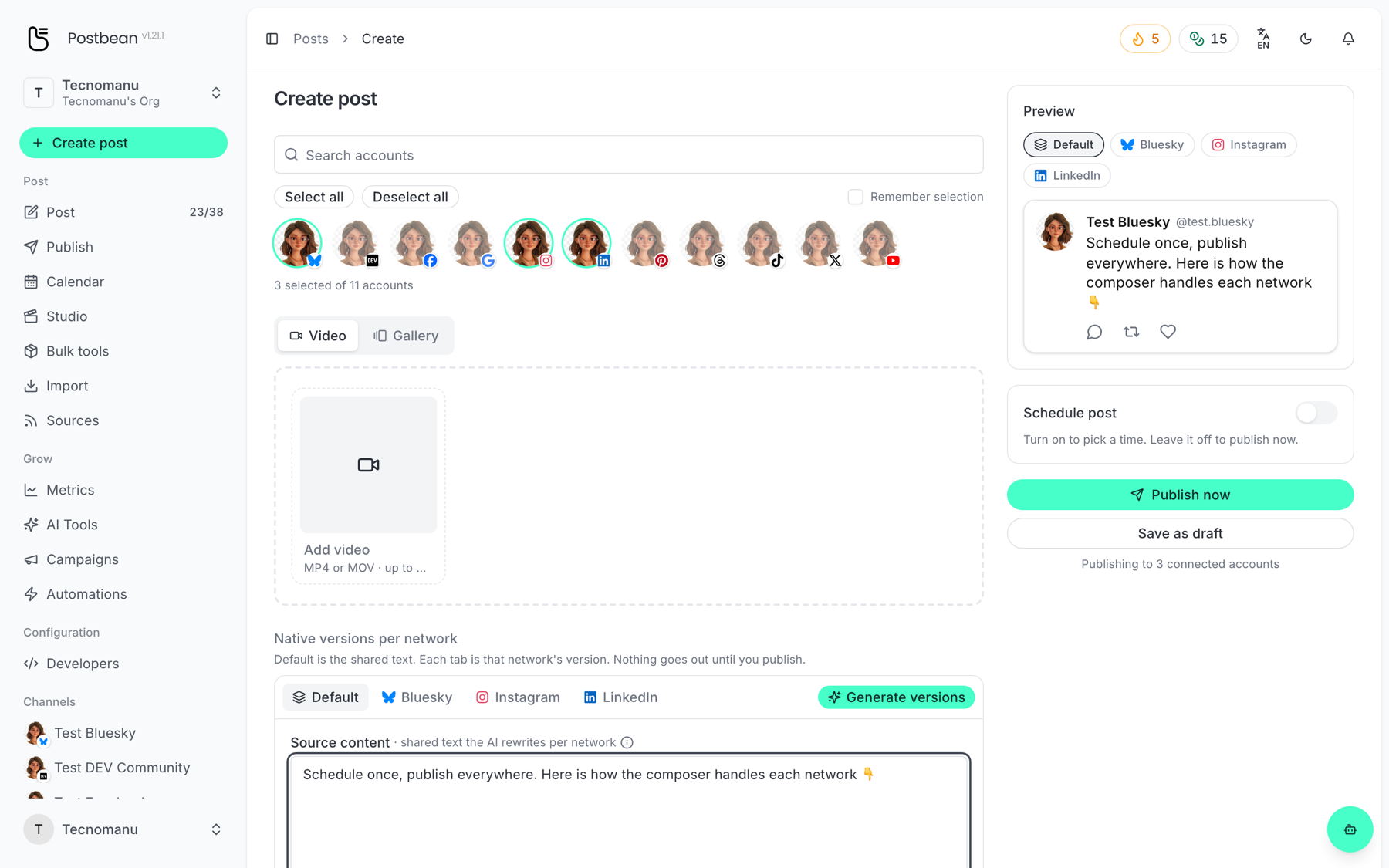
Click Create post at the top of the sidebar, or go to /panel/posts/create. Everything about a post lives on this one screen.
1. Pick the accounts
Section titled “1. Pick the accounts”The row of avatars at the top is every account you have connected, each badged with its network. Click an avatar to select it; click again to deselect. Select all and Deselect all are there for the obvious cases, and the search box helps once you have a lot of accounts.
Tick Remember selection and the same accounts come pre-selected next time — handy when you always post to the same handful.
An avatar that is greyed out cannot take the media you attached. TikTok and YouTube only accept video, DEV Community does not take video at all, so they drop out of reach depending on what you upload.
2. Add media (optional)
Section titled “2. Add media (optional)”Switch between Video and Gallery and drop your file in.
- Images: JPG, PNG or WebP, up to 8 MB each. Several images make a carousel.
- Video: MP4 or MOV, up to 100 MB.
Text-only posts are fine on the networks that allow them. Full details in Platform limits and restrictions.
3. Write the caption
Section titled “3. Write the caption”Under Native versions per network the Default tab holds the shared text — this is what goes out to every selected network unless you override it.
The Preview panel on the right renders the post as each network will actually show it, so you can catch a caption that gets cut off before you publish rather than after.
Want a different wording per network? That is the next guide: Give each network its own version.
4. Publish or schedule
Section titled “4. Publish or schedule”- Publish now sends it immediately. Postbean asks you to confirm first, and lists the networks it is about to publish to — publishing cannot be undone.
- Schedule post turns the button into a date and time picker. The post joins Publish → Queue and appears on the Calendar.
- Save as draft keeps everything without sending anything.
Some networks ask for extra options before they will accept a post — TikTok always needs an audience, YouTube needs a title. Postbean blocks the publish and tells you what is missing rather than failing halfway through.
After publishing
Section titled “After publishing”The post lands in Post (/panel/posts), with a row per network showing whether it went out. If one network fails and the others succeed, only the failed one is marked failed — you can retry that network on its own without republishing everywhere.