

How to schedule posts ahead of time
Anything you can publish now, you can schedule. There is no limit on how far ahead you can go — a post dated eleven months out is as valid as one for tomorrow morning.
Scheduling a post
Section titled “Scheduling a post”In the composer, turn on Schedule post in the right-hand panel and pick a date and time. Publish now becomes Schedule, and Postbean confirms the date and the networks before locking it in.
Times are always shown and entered in your workspace timezone, not your browser’s. The current one is displayed as a chip on the calendar (GMT-3 in the shot below) and you can change it in Settings → Workspace. Internally everything is stored in UTC, so a workspace that moves timezone does not shift its existing schedule.
Watching the queue
Section titled “Watching the queue”Publish (/panel/publish) is the working list, split into tabs:
- Queue — scheduled and waiting
- Drafts — saved, no date
- Approvals — waiting for a review
- Sent — already published
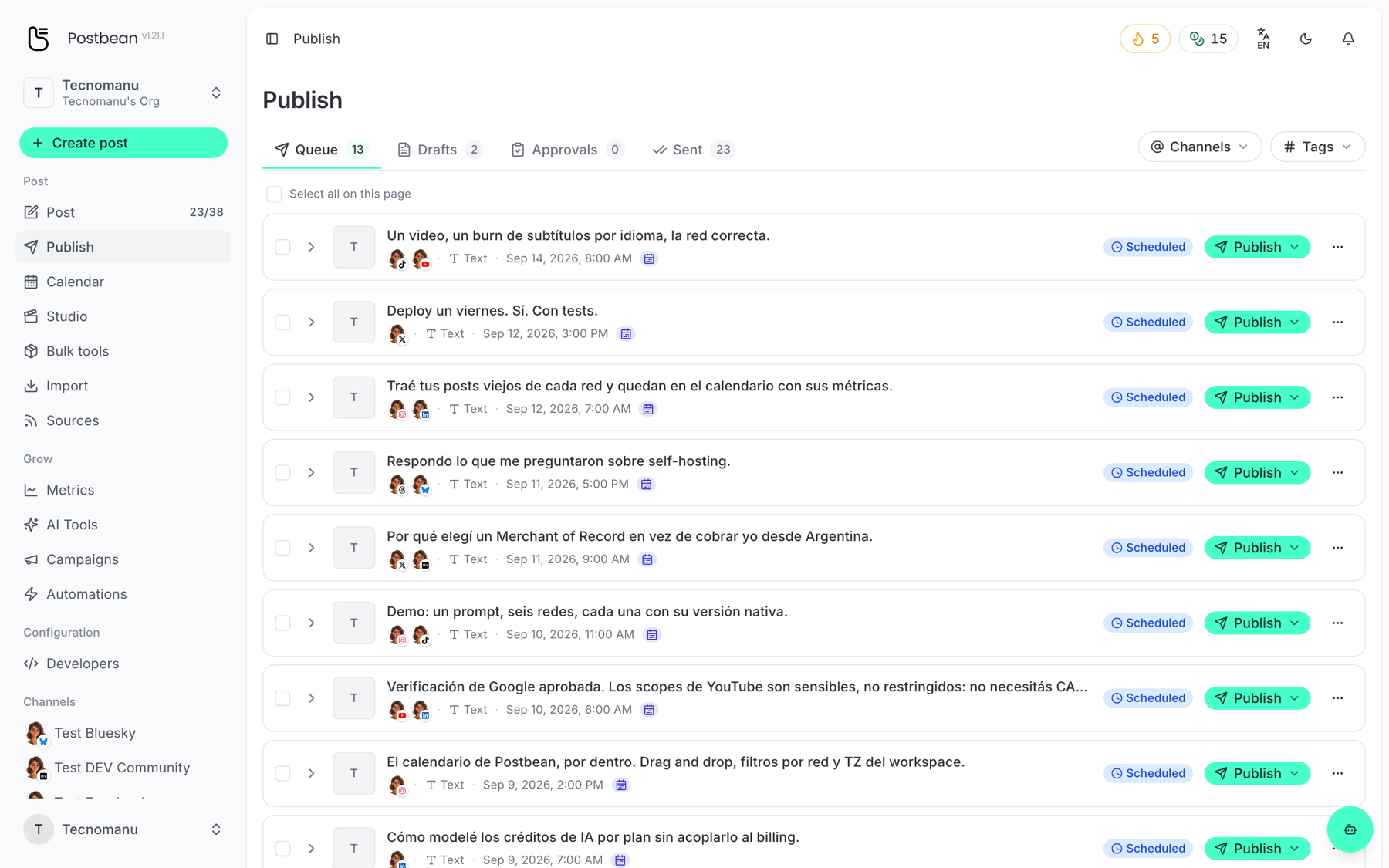
Each row can be expanded to see the individual networks. From the row you can publish it early, edit it, or cancel it — and cancelling a single network leaves the rest of the post scheduled.
Seeing it as a calendar
Section titled “Seeing it as a calendar”Calendar (/panel/calendar) shows the same posts by date, in Month, Week or Day view.
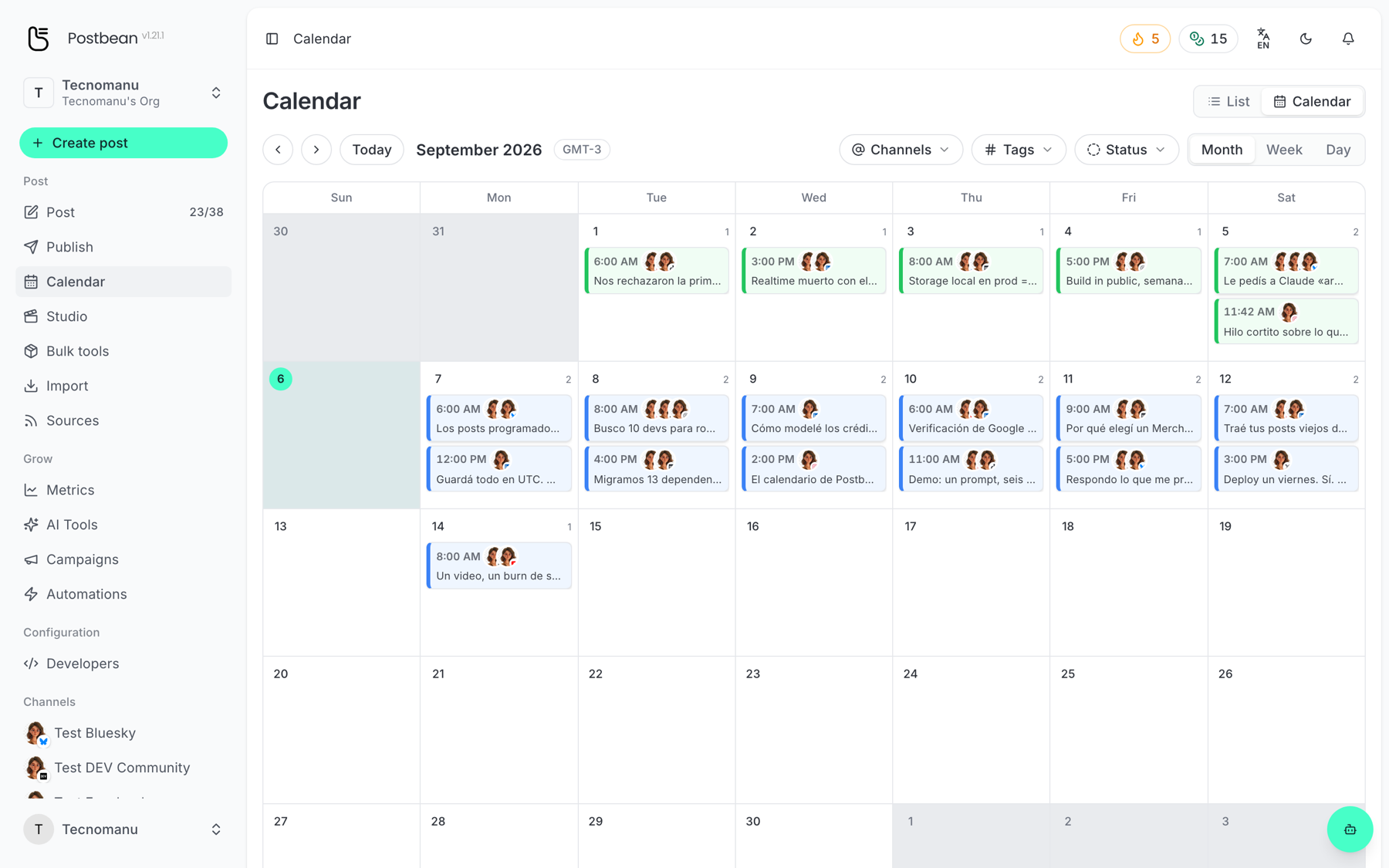
- Drag a post to another slot to reschedule it — no need to open it.
- Filter by Channels, Tags or Status to cut a busy month down to what you care about.
- Switch to List for the same range as a plain list.
A different time per network
Section titled “A different time per network”Inside a network’s tab in the composer you can give that network its own date. Useful when the same idea should hit LinkedIn on Tuesday morning and Instagram on Thursday evening. Postbean confirms per-network schedules explicitly before you commit, so it is clear that the post is not going out all at once.
When something does not go out
Section titled “When something does not go out”Scheduled posts are dispatched by a worker on the server, not by your browser — you can close the tab. If a network fails at publish time (an expired token is the usual cause) the post is marked failed for that network only, and you get a notification. Troubleshooting covers the common ones.