

How to connect your social accounts
Everything Postbean does starts here: connect the accounts you publish to, once, and they stay available in every composer, calendar and report afterwards.
Open Connections from the sidebar (/panel/connections). Each network has its own row with a Connect button and, once linked, a chip per connected account.
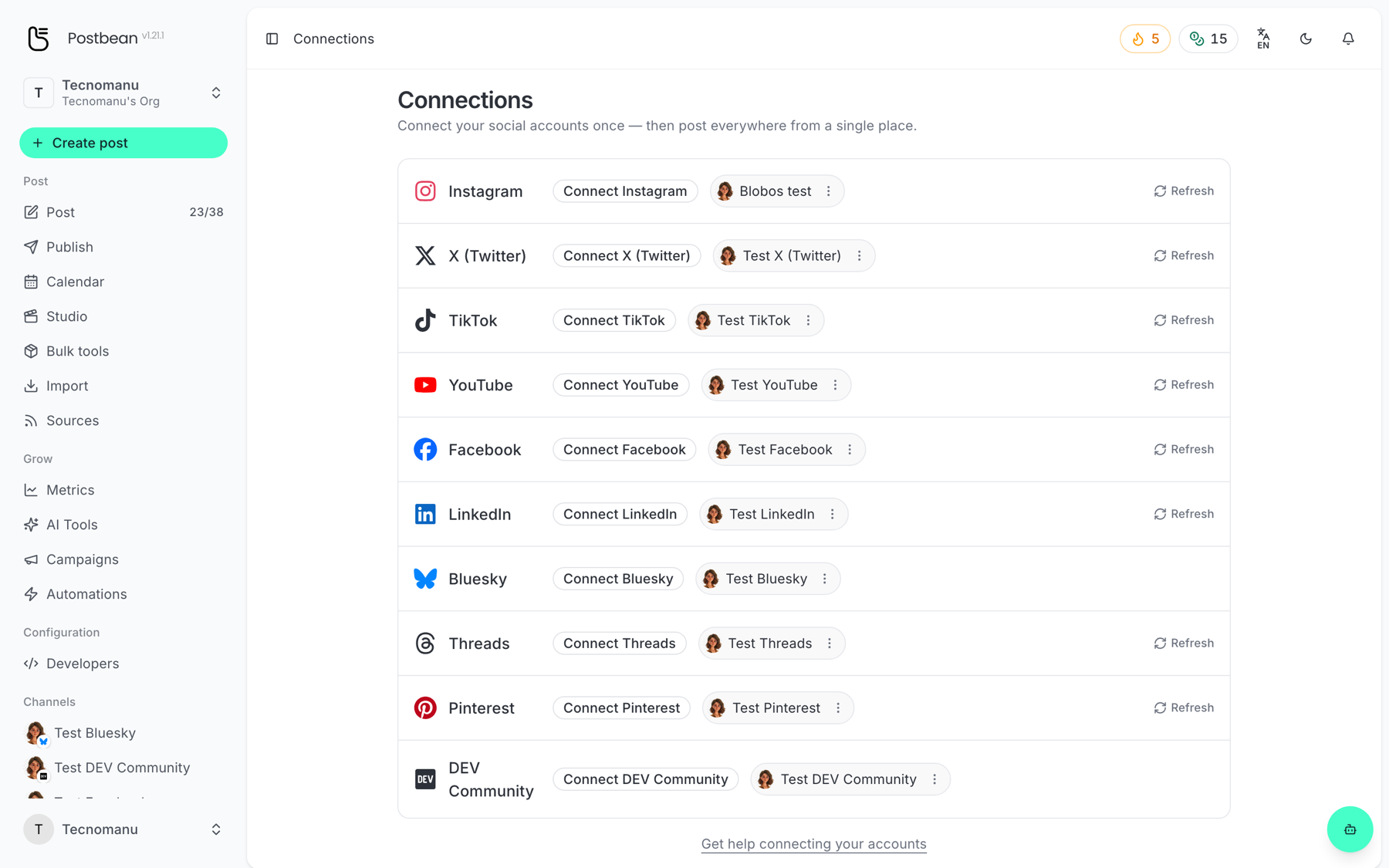
Connecting a network
Section titled “Connecting a network”- Click Connect on the network’s row.
- You are sent to that network’s own login screen. Sign in there and approve the permissions Postbean asks for.
- Leave every requested permission enabled — a permission you decline is a feature that will fail later, usually at publish time.
- You land back on Connections and the account appears as a chip on its row.
Postbean never sees your password. Only the access token the network issues is stored, encrypted. See How Postbean connects to your accounts for the details.
Two networks work differently because they do not use OAuth:
- Bluesky asks for your handle and an app password you generate in Bluesky’s own settings — never your account password.
- DEV Community asks for an API key from your DEV account settings.
Connecting several accounts on the same network
Section titled “Connecting several accounts on the same network”You can. Click Connect on the same row again and pick the next account; each one gets its own chip. Postbean will happily publish one post to several accounts on the same network at the same time — see Posting to several accounts on the same network.
For most networks you have to switch accounts on the network’s own site between connections, because the authorization screen reuses the session already open in your browser.
How many accounts you can connect
Section titled “How many accounts you can connect”The ceiling comes from your plan:
| Plan | Connected accounts |
|---|---|
| Free | 3 |
| Starter | 5 |
| Growth | 25 |
| Pro | 1,000 (fair use) |
The counter on the Dashboard shows how many you are using. Account limits and capabilities has the full picture.
Managing a connected account
Section titled “Managing a connected account”The ⋮ menu on each account chip lets you refresh it, reconnect it, or disconnect it. Refresh on the row re-reads the profile from the network — useful after you rename an account or change its avatar.
If a token expires or you revoke access on the network’s side, the channel does not disappear: it stays in the list marked as needing to be reconnected, so nothing scheduled to it goes missing. Click Reconnect and repeat the login.