
Plan a YouTube upload in the same calendar as the posts that announce it. In Postbean, connect your channel, attach a video, and give the upload a YouTube title and description. You can save the draft before choosing a date. If you’re sending a teaser to another network, you don’t have to reuse the description you wrote for YouTube.
Set up the upload for the right channel
- Open Connections in the publishing workspace and select YouTube.
- Sign in with Google, choose the channel you manage if Google asks, and approve the requested access.
- Confirm the channel shown in Postbean before choosing it in the composer. If you manage several channels, test the connection with a low-stakes upload before you schedule an important release.
In the composer, attach the video you want YouTube to receive. Use the YouTube tab for the video title. It has a 100-character limit and is separate from the description, which comes from your YouTube version of the caption. If you leave that version blank, the default caption supplies the description. The YouTube description limit is 5,000 characters. Write a title on purpose rather than depending on Postbean’s fallback from the caption.
For a tutorial, try a title that tells people what they’ll be able to do. Put prerequisites or a parts list in the description so the title stays easy to read. If the same clip goes to TikTok, write a separate caption there; a useful YouTube description can be longer than TikTok allows.
See it in the app
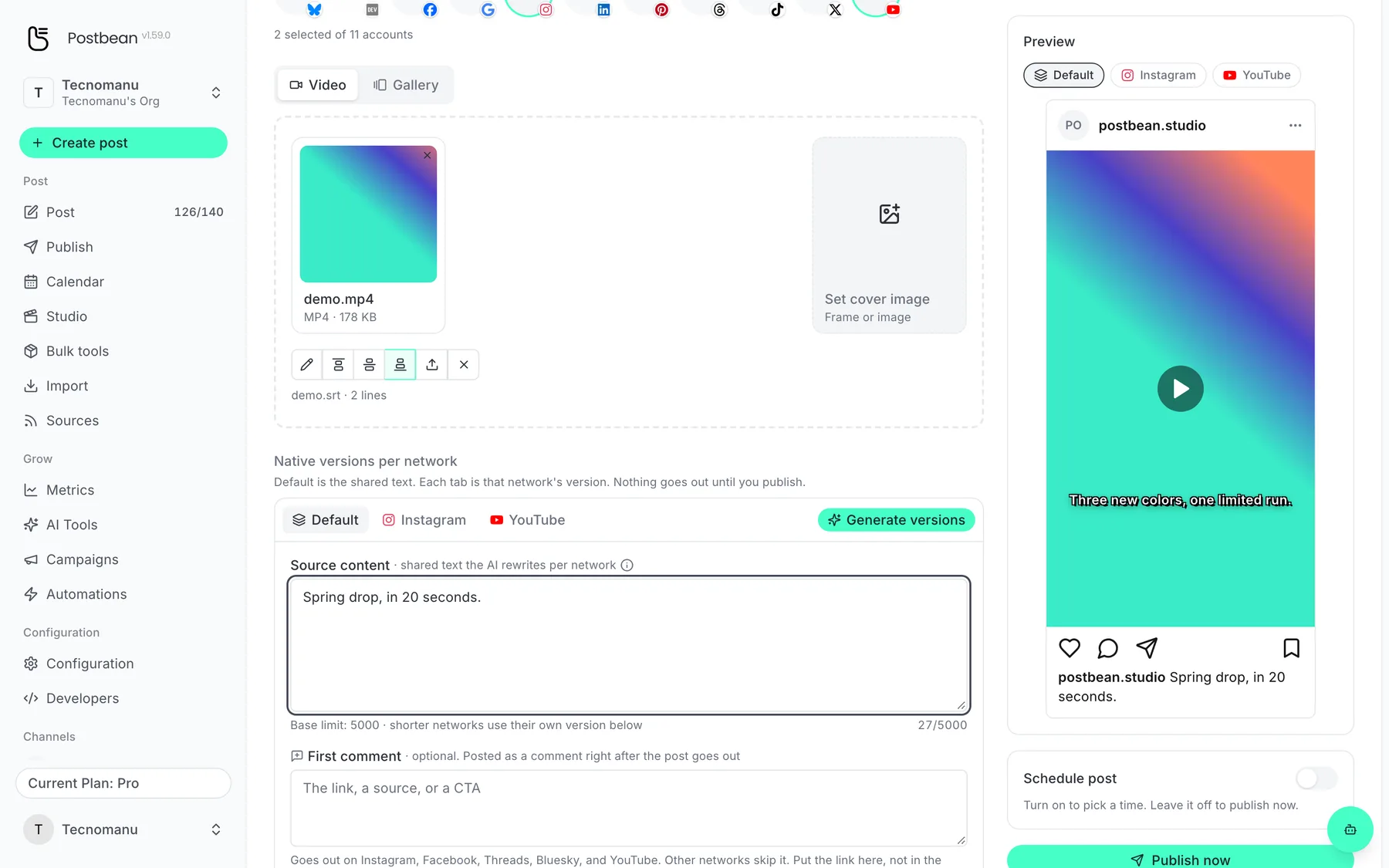
Upload an SRT and the subtitles are burned in.
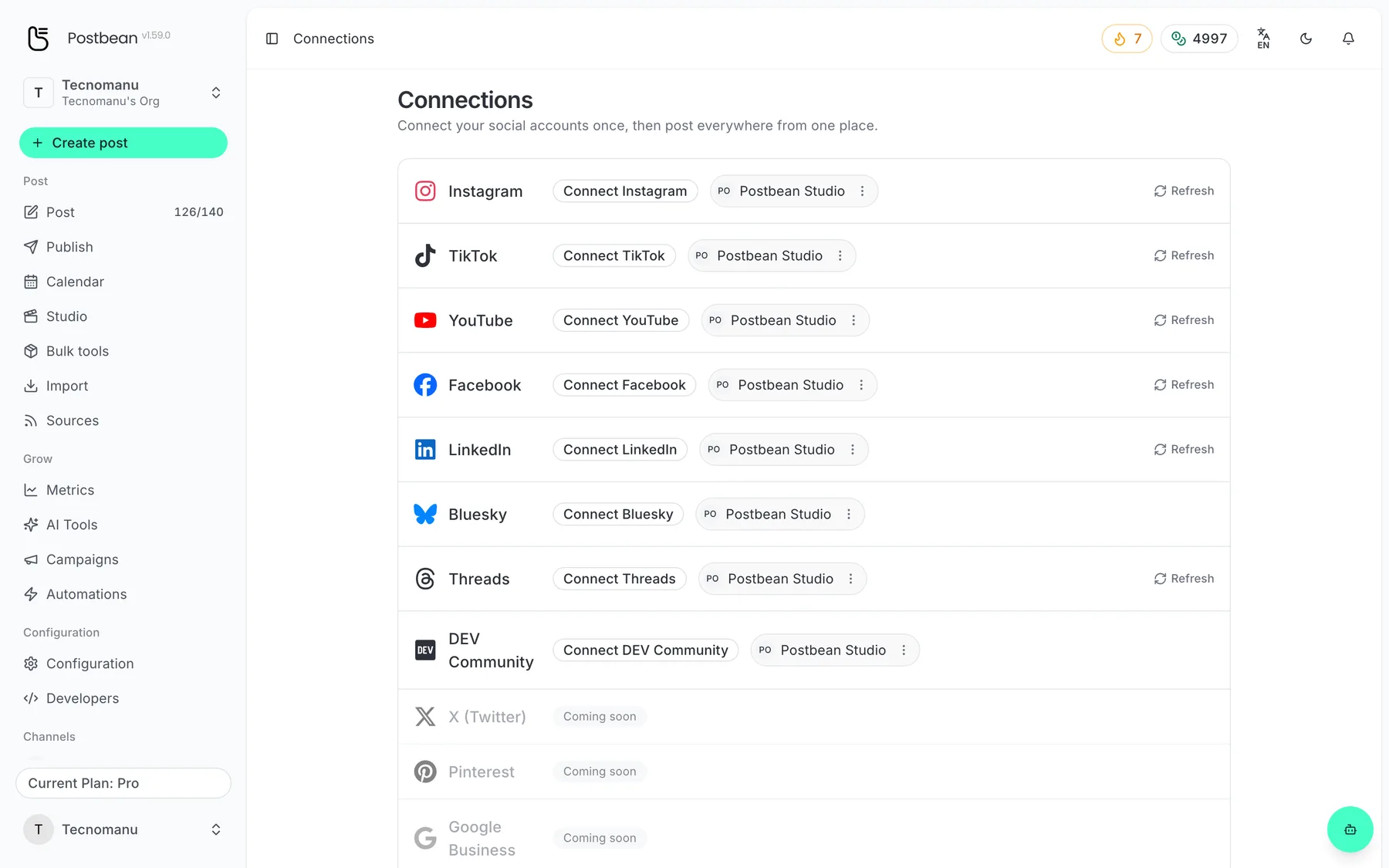
Connect each network once.
Every network in one list.
What the Short setting does
Choose Short or Video in the YouTube tab. When you choose Short, Postbean adds #Shorts to the title if you haven’t already included it. Leave room for the tag if you’re close to the title limit. The setting doesn’t crop, shorten or convert your video, and the hashtag alone doesn’t make an upload a Short. Export a file that meets YouTube’s current Shorts requirements and check how YouTube classifies it once it’s up.
If the clip is an excerpt and you want the native Related video link on YouTube, do that part in Studio after uploading. Postbean doesn’t set that field. For a launch, put the Studio check on the same checklist as the upload so it doesn’t get lost once the clip is live.
Check the thumbnail, visibility and first comment
You can attach a cover image for Postbean to try as a custom thumbnail. YouTube needs to allow custom thumbnails on your channel. Postbean sends the thumbnail after the video upload, so a rejected image doesn’t undo the video. Check the thumbnail in Studio if it matters to the release, and don’t count on that custom image for the Shorts feed.
A first comment is a separate action too. It requires permissions beyond uploading, and the video has to accept comments. If uploading works but the comment fails with a permissions error, reconnect through Google and review what’s authorized. Put information people need to use the video in the description rather than depending on the comment. After a scheduled upload, verify visibility as well: a successful upload doesn’t by itself establish that the video is public.
Review the upload on YouTube
The optional first comment has a separate limit of 10,000 characters. After the upload, Postbean analytics, currently in beta, can sync video views, likes and comments. Check YouTube Studio for watch time or audience retention; Postbean does not sync those reports.
Plan the release and the posts that point to it
Use the calendar for the full video and any separate teaser cuts. Give yourself time to check the video in Studio before sending posts that tell people it’s ready to watch. If your announcement includes a link, open it while signed out to check what a viewer can see. If you’re comparing publishing tools, see our comparison of Postbean and Publer. For a launch checklist that covers missed or delayed posts, start with why scheduled posts fail.
Create a Postbean account to plan a YouTube upload and the posts that go with it.
Frequently asked questions
Can I schedule both Shorts and regular videos?
Yes. Choose Short or Video in the YouTube tab. YouTube determines whether the uploaded file qualifies as a Short.
Can I link a Short to a related video from Postbean?
No. Add the related video in YouTube Studio once your Short is uploaded.
Will a rejected custom thumbnail stop my upload?
No. Postbean tries to set the thumbnail after YouTube accepts the video. The upload can succeed even if YouTube rejects the thumbnail.