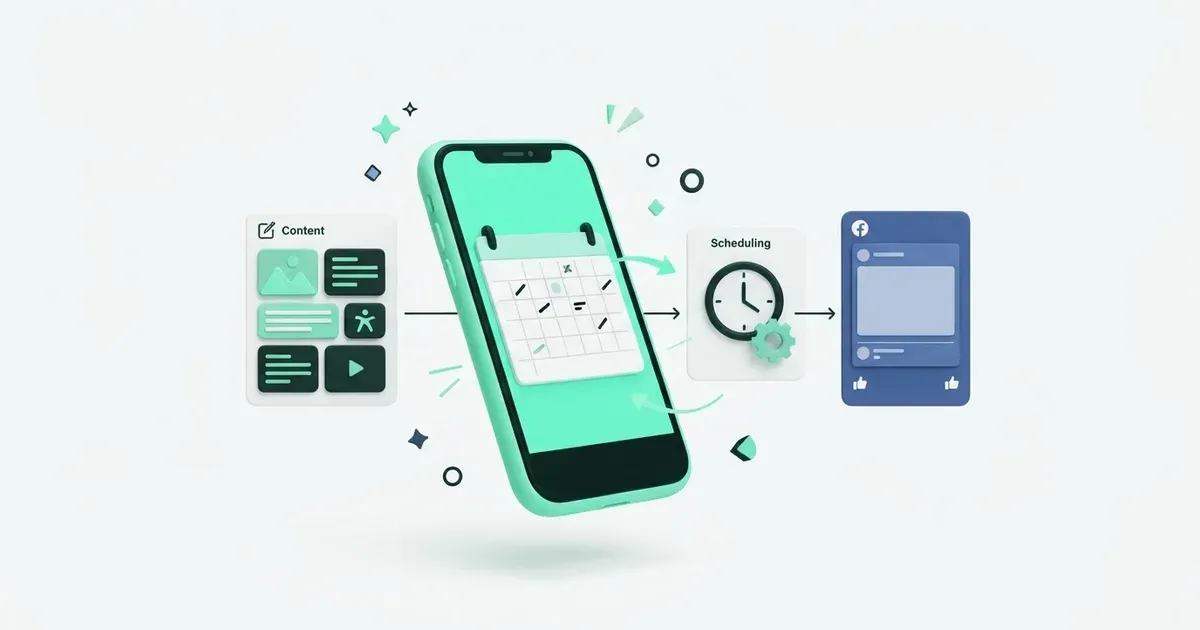
A Facebook Page can carry a plain notice on Monday, a photo from the venue on Thursday, and a video recap after the event. You can plan those posts in Postbean instead of going back to the Page every time one is due. That also lets you see what’s scheduled for Facebook next to what’s planned for the rest of your accounts.
Connect a Page, not a personal profile
- Open Connections and select Facebook in the workspace that will publish.
- Sign in to Facebook with the account that manages the Page. Allow access to the Page and grant publishing permissions when Facebook asks.
- In Postbean, select the Page from the accounts Facebook returns. Your personal profile is how you sign in, not a publishing destination. Facebook groups aren’t destinations either.
If the Page is missing, start by checking that you’re signed in to the right account and that it has permission to manage and publish content for that Page. Then review which Pages you allowed Facebook to share during authorization. If you manage two Pages with similar names, confirm which one you’ve selected before you schedule anything; the Page name in Postbean is there to help you tell them apart.
See it in the app
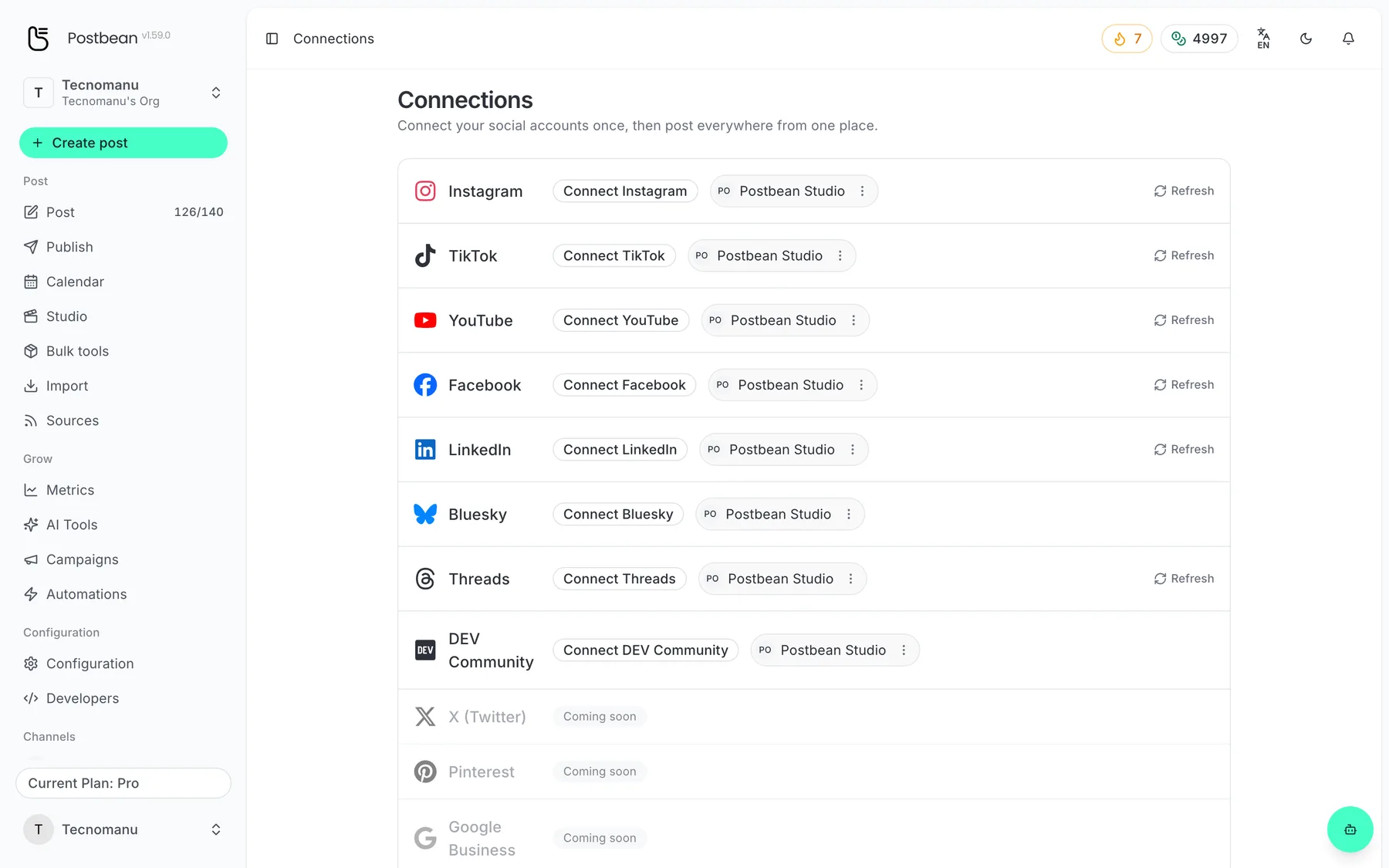
Connect each network once.
Every network in one list.
Give each update a format that fits
You don’t need a graphic for every update. A text post works for something like a change in opening hours, where the most useful thing is to get the new hours into the opening lines. If you do have an image, attach it in the composer and use the caption for any details that don’t fit in the graphic.
For a recap made up of photos, attach several images to the same feed post. Postbean sends those as a multi-photo post. The Facebook publisher rejects a mix of photos and video in one post, so give the clip its own entry. You can put the photo set and the clip on different days in the calendar if the images tell one part of the story and the video has something new to add.
For a Facebook Story, prepare one photo. The publisher doesn’t send the post’s caption with a photo Story, so include a time or location in the image if people need it. A single video goes through Facebook’s regular Page video publishing path. Don’t count on the Story setting to turn it into a video Story. If that placement is important for a particular clip, publish the Story in Facebook instead.
Plan Facebook alongside the other versions
When you’re posting the same news to Instagram or Threads, use a shared draft for the details that are true everywhere. Then rewrite the Facebook version to give Page followers the context they need. An Instagram caption that says “see the link in bio,” for example, probably needs a different closing line on Facebook. You can set a different time for the Page with per-network scheduling without changing the other versions’ times.
After the scheduled time, open the post to see the result for the Page. Publishing results are tracked by account, so a problem on another network doesn’t tell you whether the Facebook post went out. If Facebook reports a permission error, check the Page connection before retrying. An optional first comment is a separate step that depends on the access Meta grants; even a published post doesn’t guarantee that its comment went through.
If the update is only relevant for one day, use a specific date in the text rather than “tomorrow.” People can still find the post on your Page after the event. A date makes the notice easier to understand even when it shows up late.
Caption, first comment and Page metrics
Postbean does not set a Facebook-specific character limit on the main text. An optional first comment has a separate limit of 8,000 characters and is attempted after the post goes live, subject to Page permissions.
In Postbean analytics, currently in beta, you can see likes, comments and shares when Facebook returns them. Some Page posts can also return clicks or video views. Check post-level data before comparing a video to a photo announcement.
Put your next Page update on the calendar
If you’re planning a whole month, start with how to build a content calendar. For a side-by-side look at scheduling workflows, read Postbean vs. Loomly. When you’ve got a Page update ready to try, create a Postbean account, connect the Page and save it as a draft.
Frequently asked questions
Can I schedule to a personal Facebook profile or group?
No. You sign in with Facebook to authorize the connection, but Postbean publishes to Pages, not personal profiles or groups.
Can I publish photos and video in one Facebook feed post?
No. Use a photo post with one or more images, or publish the video separately.
Does scheduling a Facebook video publish it to Stories?
The Facebook publisher sends a video as a regular Page video, even if the composer shows a Story option. Use a single photo for a Facebook Story in Postbean.