
If your post announces a new workshop, you might want the date and venue in the caption and the full session list in a reply. Write both before you schedule. Postbean publishes the post first, then attempts to add the comment from the same account. You don’t have to wait for the scheduled time to paste the extra information yourself.
The first comment is optional. It works for a source citation, a short answer to a question people are likely to ask, or a link that makes sense on that particular network. Put anything a reader needs to understand the post in the caption itself. Someone looking at the feed may never open the replies, and the network can accept a post while rejecting its comment.
Add your first comment in the composer
- Open Create post in the composer and select the accounts you want to publish to. Write the caption and attach any media the post needs.
- Under Native versions per network, open Default and fill in First comment. This is the shared version, not part of the caption.
- To change it for one network, open that network’s tab and fill in First comment for that network. A version there replaces the shared comment; it doesn’t append to it. Use the preview to read the two pieces together.
- Choose Save as draft if you want to come back to it, or Schedule post or Publish now when it’s ready. Neither typing in a tab nor saving a draft sends anything.
You can also start with an empty Default comment and fill in just one or two network tabs. That’s useful if the comment is specifically for a Threads conversation and the Instagram version already includes the necessary details. If you start with a shared comment, deleting the text in a network tab reverts to the shared one. It isn’t a way to switch off the comment for just that tab.
See it in the app
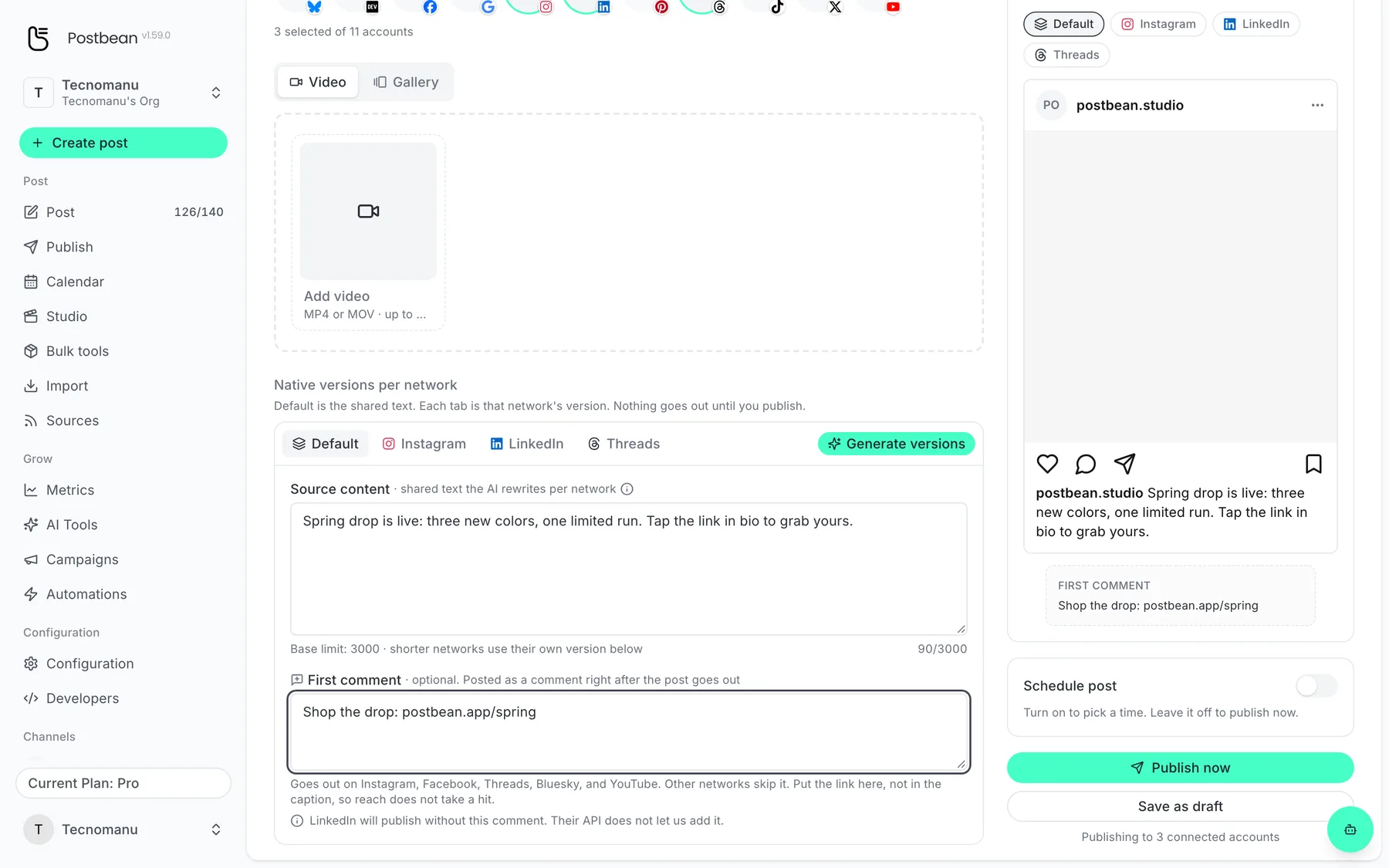
The link goes in the first comment, not in the caption.
Where it goes out and how much room you have
The table shows Postbean’s configured platform ceilings. The composer currently accepts at most 2,000 characters per first-comment field, even where the platform ceiling is higher. Use the lower limit when preparing a comment in the panel.
| Network | Configured platform ceiling |
|---|---|
| 2,200 characters | |
| Facebook Pages | 8,000 characters, subject to Page permissions |
| Threads | 500 characters |
| Bluesky | 300 characters |
| YouTube | 10,000 characters, where comments are enabled |
If you’re preparing a post for TikTok, DEV Community or LinkedIn, those network tabs don’t offer a first-comment field. The composer doesn’t offer that option for X, Pinterest or Google Business either. Facebook Pages have the field, but the connection needs permission to post the comment. If the reply is important to your workflow, test it on the Page you’re going to use before relying on it for a launch.
Postbean checks the effective comment when you schedule or publish. For example, a shared note of 360 characters will fit on Threads but not Bluesky. Give Bluesky a shorter version instead of rewriting the shared text for every account. An over-limit draft can be saved; fix the text before you send it. The guide to per-network versions shows where those tabs live.
Check the comment on the live post
A comment follows its own post, not the first network in your selection. With separate schedules by network, if Instagram goes out before YouTube, Postbean attempts each comment after its respective post. There isn’t a separate comment timer or a pinning step.
Open the live post to confirm that the comment landed, especially if it contains a link you’re sending people to. A successful publish status refers to the post. If the network rejects the comment, add it on the network instead of publishing the whole post again. For something that has to be visible even if replies are disabled, keep the information in the caption from the start.
Create a Postbean account to prepare a post and its first comment together.
Related reading
Frequently asked questions
Can I pick a separate time for the first comment?
No. Postbean attempts the comment after the post goes live on that account, whether you publish now or schedule it.
What happens if I leave a network's comment field empty?
That network uses the shared first comment if it supports the feature. Leave the shared field empty and write only in the tabs where you want a comment to go out.
Does a failed comment mean the post failed too?
No. The comment is a separate request after the post is live. Check the actual post if the comment matters.
Is the first comment pinned?
No. Postbean adds a regular comment or reply, depending on the network.