
Say you’re announcing a new workshop. The date and registration details are the same everywhere, but the paragraph you wrote for LinkedIn is longer than you’d put on Threads. In Postbean, you can start with that paragraph, write a shorter Threads version in its own tab, and keep both in one post. If you find a typo in the shared caption, you can fix it there instead of hunting through copies that still use it.
Start with the accounts
Click Create post in the sidebar and select the connected accounts that should receive this post. Look at the account names as well as the network icons before you publish. If you manage two LinkedIn accounts, for instance, selecting LinkedIn as a destination isn’t the whole decision: you still need to check which profile or page you selected. Use the search box if the account list is long. Remember selection can preselect your usual accounts the next time you open a new composer, but you can change the selection before you send.
Add files if the post needs them. Use Video for a single clip or Gallery to add several files and arrange their order. Postbean accepts JPG, PNG, and WebP images up to 8 MiB each, and MP4 or MOV videos up to 100 MiB. Those are upload limits, not permission to send every format to every network. A YouTube destination needs video, for example. If you change the media, check the selected accounts again: the composer can drop accounts that don’t support the new format.
See it in the app
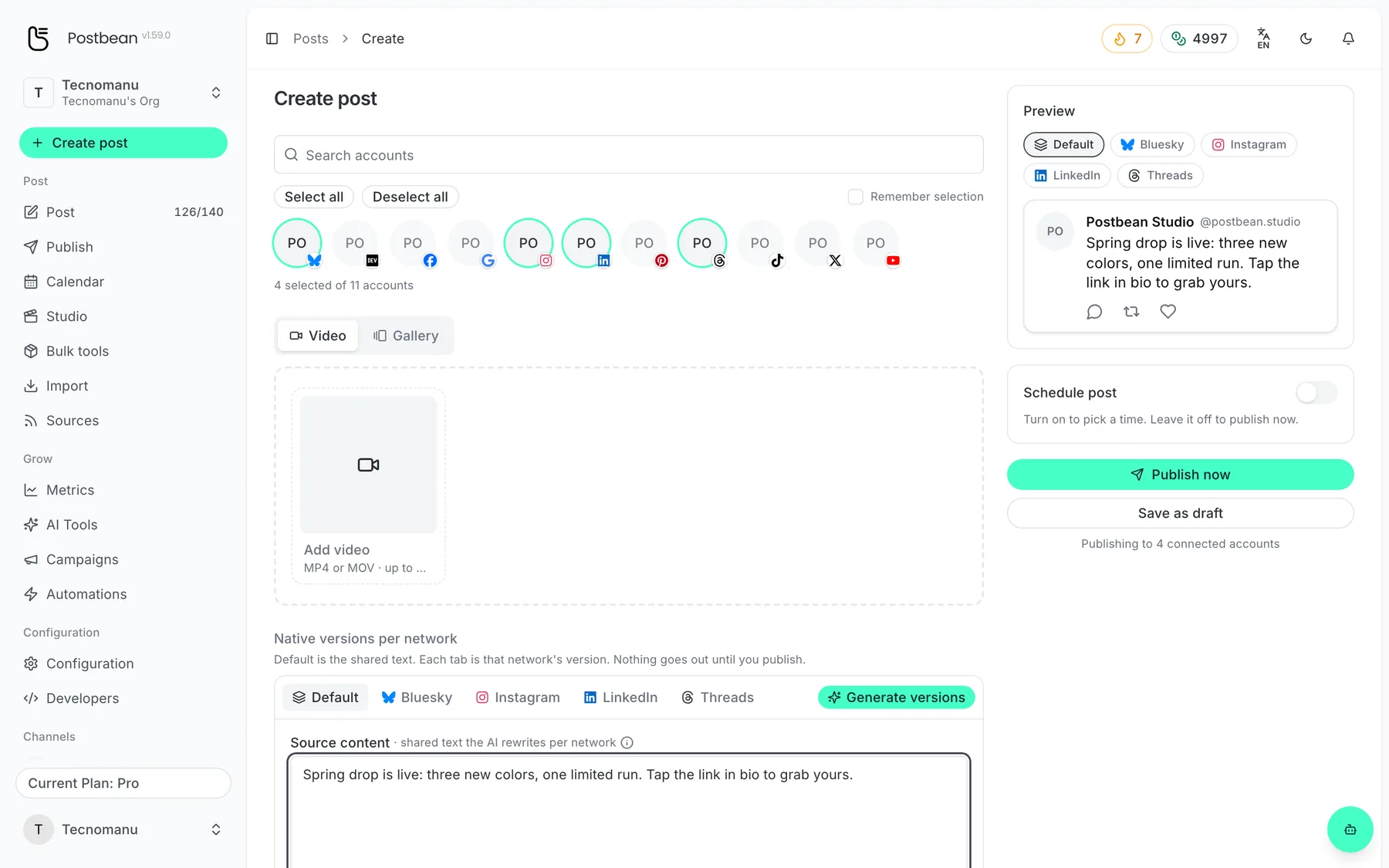
Write once and pick every network.
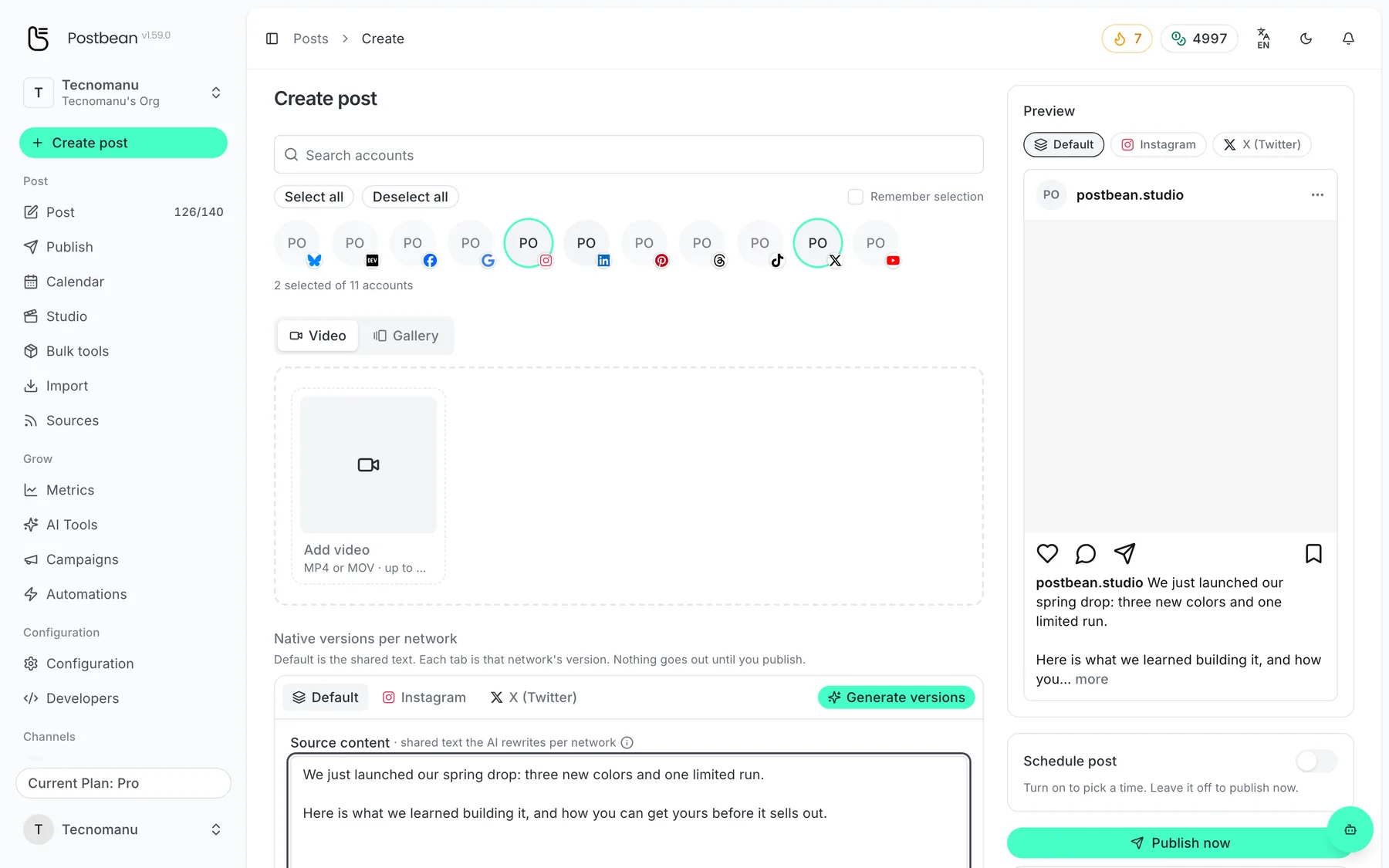
Each network can keep its own version of the text.
Pick your networks and write once.
Write the version most accounts will use
Under Native versions per network, write your shared caption in Default. If the same wording works everywhere, you can stop writing there. Otherwise, open a network tab and enter a replacement caption. An empty network caption inherits Default. An explicit replacement stands on its own, so when the date of the workshop changes, remember to correct it in the Threads version as well as the shared caption if you mentioned it in both.
You can also enter a shared first comment and replace it on networks that support that option. Keep essential details in the caption if some of your destinations don’t support first comments. Network tabs also show settings that don’t belong in shared text. For example, set a YouTube video’s title in the YouTube tab rather than assuming the first line of the caption will become the title.
Use Preview to switch between the selected networks before you commit. Look at the first few lines, the media order, and whether you’re looking at the default or replacement caption. The preview helps you spot layout and copy problems; it isn’t a confirmation from the social network. Check the character counter as well. Postbean allows up to 500 characters for a Threads caption and 3,000 for LinkedIn. Shortening the Threads version keeps the room you need for detail on LinkedIn. A draft can exceed those limits; Postbean checks the effective text before scheduling or publishing.
Decide what should happen when you save
- Use Save as draft if you still need to check the copy or get an asset. You’ll find the saved post under Publish → Drafts. Saving it there doesn’t send it anywhere.
- Use Publish now if everything is ready. Review the destinations in the confirmation first. Then check the status of each account; a send to one account can succeed while another fails.
- Turn on Schedule post if the announcement should wait. Enter a date and time in your workspace’s time zone. Use per-network scheduling if some destinations should go out at different times. After you confirm, look for the post in the publishing queue.
Create a Postbean account to open the composer, or follow the first-post walkthrough if you want to see the screen before you start.
Related reading
Frequently asked questions
Do I have to write a caption for every network?
No. Write it in Default and leave the network captions empty wherever you want to reuse it.
Can I post without an image or video?
Yes, on networks that accept text-only posts. Choose your accounts with the format in mind.
Can I save a caption that is over a network's limit?
You can keep it in a draft. Shorten the caption for that network or remove the destination before you schedule or publish.
Does the preview mean the post is live?
No. The preview is a mockup. Check the publishing result for each account after sending.