
If you run a social calendar out of a spreadsheet, moving a row doesn’t change anything in the publishing tool. In Postbean’s Calendar, moving an eligible scheduled entry changes when it is set to go out. The grid also shows dated posts that have already gone out, so you can check what landed before filling the next open spot.
The calendar is useful for a freelancer scanning several accounts before a client call, or for a small team trying to keep a launch announcement from crowding out its regular posts. You don’t need to work out of the grid all day. Use it to answer date questions, then switch to the publishing queue when your question is about what’s waiting to go out or what happened after an attempt.
Find the right week and account
- In the workspace you’re planning for, open Calendar from the sidebar. Check the time zone badge beside the date navigation before comparing slots with a brief or a meeting invite.
- Choose Month to scan the dates around a launch or deadline. On desktop, switch to Week when the hour matters; pick Day if you want to look more closely at just one date. Use the arrows to move across periods or Today to jump back.
- Open the filter menu and choose Channels, Tags, or Status. Select the specific account when you only want its posts. If you tagged a set of posts for an event, you can use that tag to bring the set into view.
- Look at the active filters if a date seems unexpectedly empty. Use Clear all to go back to the unfiltered view. Use List if you want to find an undated draft or see posts without the grid’s date range.
- Click a post card to open the post itself. That’s where to look if the card tells you when something is due but you still need to inspect the copy or the outcome for a particular account.
A channel filter selects posts that include that account. A matching cross-post can still show other accounts attached to it. Before changing a time, check the account icons on the card rather than assuming you’re editing only the account you used as a filter.
See it in the app
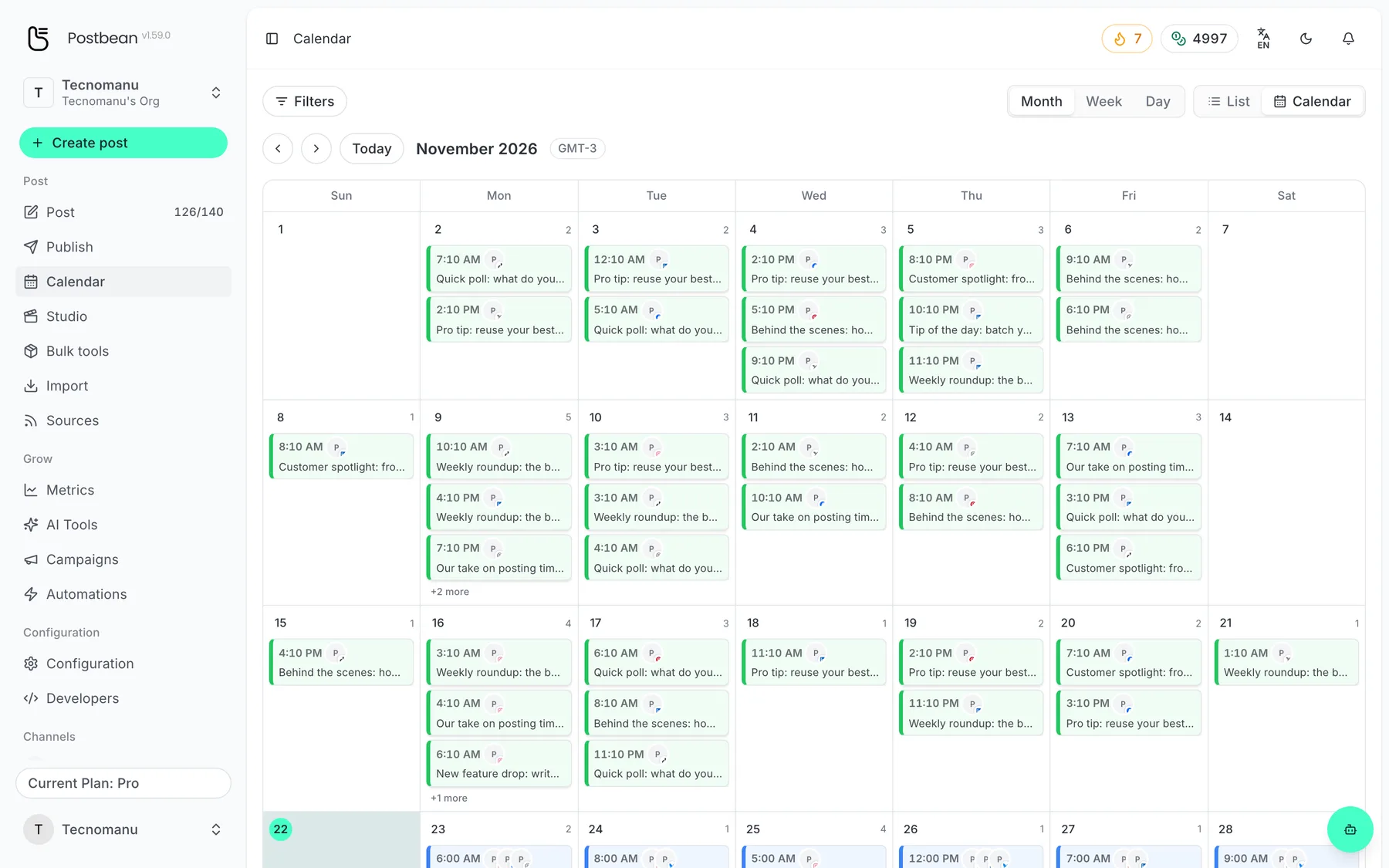
See the whole month at a glance.
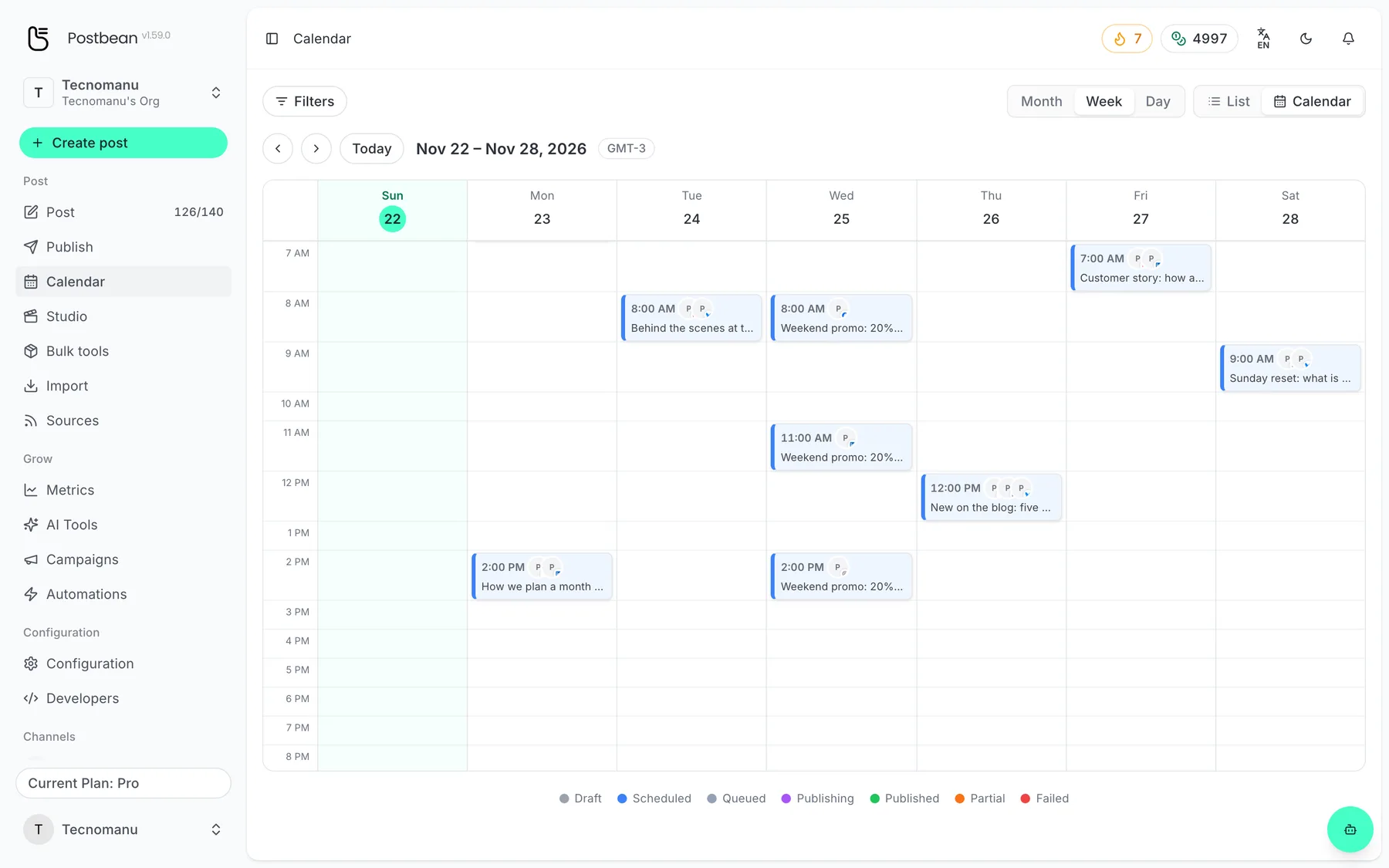
The week view shows each post at its time.
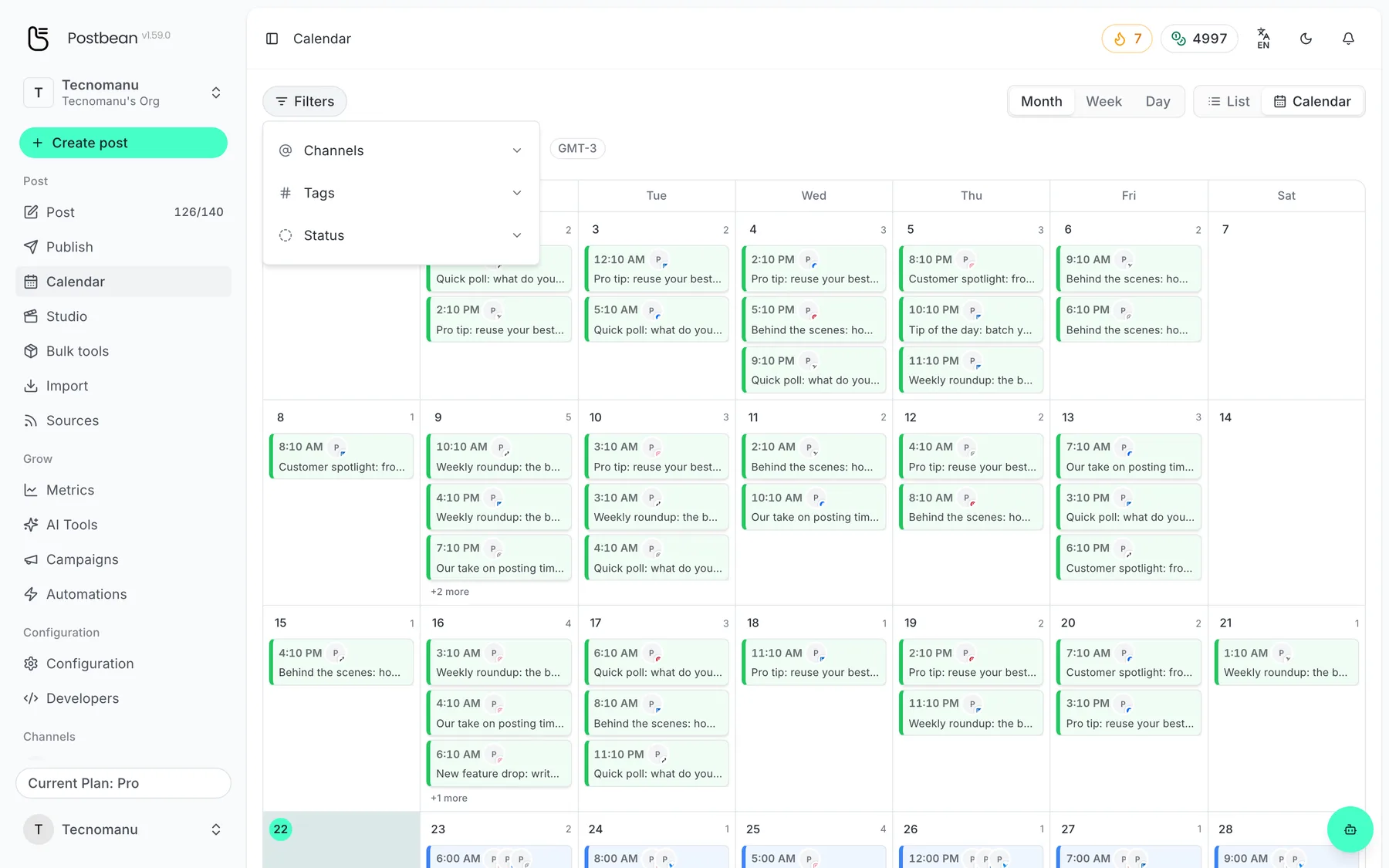
Filter by channel, tag or status.
Schedule it and it lands in the queue.
Move a date without changing the copy
Suppose an Instagram announcement set for Tuesday at 10:30 needs to wait until Wednesday. In the desktop Month grid, drag the card from Tuesday to Wednesday. That kind of move keeps the hour and minute, so it lands at 10:30 on the new date. Reopen the post to confirm the time if it has to match another release.
The Week and Day time grids work differently: dropping into an hour row sets the time to the top of that hour. If you need 10:30 rather than 10:00, enter the exact time in the composer instead of dragging into the 10:00 row. If the card jumps back after you move it, check the post directly. The calendar reloads its entries if the scheduling change is rejected.
A shared schedule moves the post’s shared time. With separate schedules, the cards represent time slots, and accounts set to the same minute share a card. Moving the Monday card doesn’t also move Thursday’s. If you need to move one account out of a shared slot, change that account’s time separately instead of dragging the group. The grid doesn’t let you move a completed publication to a new date.
Pick a view for each kind of work
Use Month for spacing: if there are four posts on one day and none for the rest of the week, ask whether that was deliberate. Use Week for collisions: a customer announcement and a product update might both make sense on Wednesday, but needn’t go out in the same hour. Use List to find posts without a date and decide which ones are ready to fill those openings. A blank cell isn’t a reason to publish on its own. It’s a place to put something you already want to say.
For a planning routine you can try with your own accounts, read how to build a content calendar. If you’re looking at more than one scheduler, start with Postbean vs. Loomly. To try the calendar with a draft of your own, create a Postbean account.
Frequently asked questions
Why is my draft missing from the calendar grid?
A draft without a date has no place in the grid. Switch to List in Calendar, or open Publish → Drafts.
What time zone does the calendar show?
It uses the effective time zone for the workspace. The badge next to the date navigation shows the offset.
Why is the same post on two different days?
A post with separate schedules can appear once for each scheduled slot. The entries are still part of the same post.
Is Week available on my phone?
The mobile layout offers Month and Day instead. You can also switch to List.