
Use Postbean to prepare and schedule posts that go out under your own name on LinkedIn. That works for an independent consultant sharing a project, or a founder writing an update for their network. You can start with text and add images or a video if they help tell the story. If you need the update to appear under your company’s name instead, plan to publish it on the Company Page separately.
Connect the profile you’ll publish from
- Open Connections and choose LinkedIn in the workspace you’re using.
- On LinkedIn, sign in to the member profile that will publish and approve access.
- Confirm that profile in Postbean before drafting the announcement. Being an admin won’t make a Company Page appear. If you publish for more than one person, each member profile needs its own authorization.
See it in the app
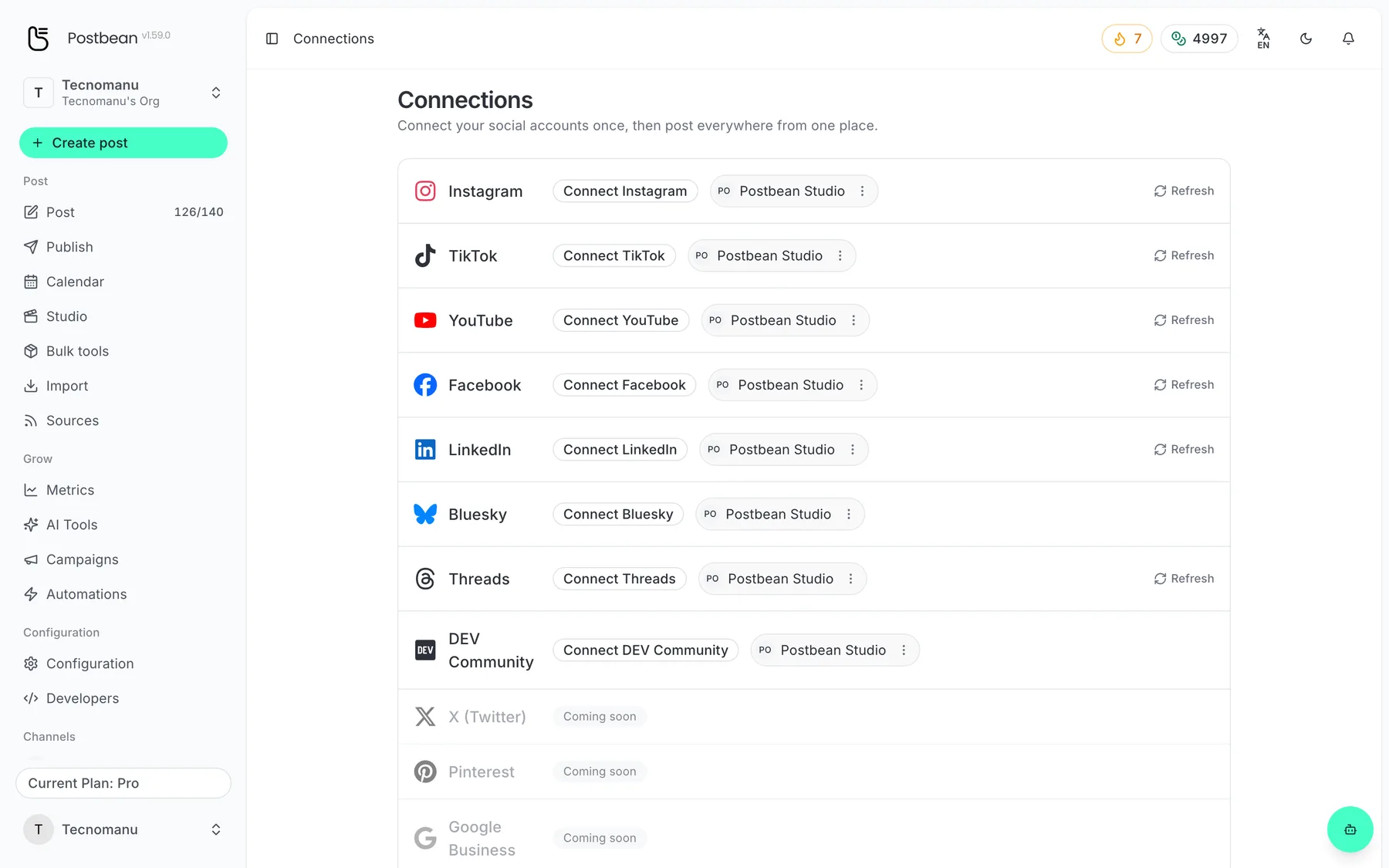
Connect each network once.
Every network in one list.
Pick the format that fits the update
A text-only post is enough for an observation or short recap. Add one image for something readers need to see, or several for a sequence such as before and after photos. Multiple images publish as a multi-image post. That’s an image format, not a PDF document carousel. If you’re assembling a step-by-step guide, use images that make sense on their own or save the document version for a manual LinkedIn post.
When you attach a video, Postbean uses the first video and leaves the attached images out of the LinkedIn post. If you want one of those images to represent the clip, set it as the video’s cover rather than attaching it as another item. If the photos matter in their own right, give them a separate slot in the calendar. This also lets you write a caption that explains what to look for in each format.
Edit the version that goes to LinkedIn
The LinkedIn caption can be up to 3,000 characters. Postbean checks the selected version against that limit before scheduling or publishing. Drafts give you room to finish the edit first. Open the LinkedIn tab in the composer to adapt the text without changing the version you’ve prepared for another channel.
For example, a freelancer could share a screenshot of a finished project on LinkedIn and Threads. On LinkedIn, the post can explain the constraint that shaped the design and what the client agreed to change. On Threads, the same image might need only one observation. Put the point of the LinkedIn post in the opening lines and use the rest for detail; there’s no reason to stretch a short idea to fit the maximum.
Don’t rely on a scheduled first comment
LinkedIn member authorization lets Postbean submit a post. It doesn’t give the permissions needed to add a first comment, so the web composer doesn’t offer that option for LinkedIn. If a source, link or credit is essential, put it in the post text. If you want a separate comment for discussion, add it manually on LinkedIn after publication.
Which numbers to check on LinkedIn
Postbean analytics does not sync LinkedIn metrics. Open the published post on LinkedIn to check its performance. The backend defines a 1,250-character ceiling for a first comment, but that validation rule does not make the feature available in the web composer.
Put it on the calendar and check the result
Use the calendar to see the LinkedIn post alongside the rest of your week. If you want the same update to reach another network on a different day, give it a separate time for that network. Check the resulting post on LinkedIn before sharing it elsewhere. For more on connection or delivery problems, read why scheduled posts fail. If Company Pages are a requirement, use our comparison of Postbean and Planable to make a shortlist and verify Page publishing before choosing a tool.
Create a Postbean account to prepare your first LinkedIn profile post.
Frequently asked questions
Can I schedule posts to a LinkedIn Company Page?
No. The LinkedIn connection authorizes publishing to your personal profile, not to a Company Page you administer.
Can I schedule a first comment on LinkedIn?
The LinkedIn composer does not offer it. LinkedIn requires Community Management API access for that action; member publishing permissions are not enough.
Can one LinkedIn post include both photos and a video?
If you attach a video, Postbean sends the video and leaves out the attached photos. Use a separate image post or set an image as the video cover.