
A product update can go on LinkedIn on Tuesday morning and on Instagram on Thursday afternoon without two separate posts in your workspace. Use Per network in the composer to choose those times. You can keep the same media and write a different caption for each destination. Each send has its own account status, so you can check Tuesday’s result without interrupting what’s planned for Thursday.
Give each network a time in the composer
- Open Create post and select the connected accounts. Add the copy and media in the composer. If the announcement needs different wording on LinkedIn and Instagram, set that up in their caption tabs. Changing the caption doesn’t set a schedule.
- Turn on Schedule post and switch from All together to Per network. You’ll see one date row for each selected platform. If you started with one shared time, the composer can carry it over into the network rows. Review each row rather than assuming they’ll start blank.
- Set the date and time for each destination that should wait. Use Pick a date for this network if that row doesn’t have a date. Check the displayed time in the workspace time zone, especially if you’re scheduling while travelling or planning for an audience in a different city.
- Click Schedule post and read the confirmation. If any selected networks have no date, the confirmation warns that those will go out right away. Back out and add dates if everything is supposed to wait.
For example, keep the Instagram row set for Thursday and use Remove date on Threads if you want to send there now. Removing the date in the composer doesn’t remove Threads from the post. To exclude a destination altogether, deselect the account. If you’re still deciding the order and want nothing to go out, save a new post as a draft instead of submitting it to publish.
See it in the app
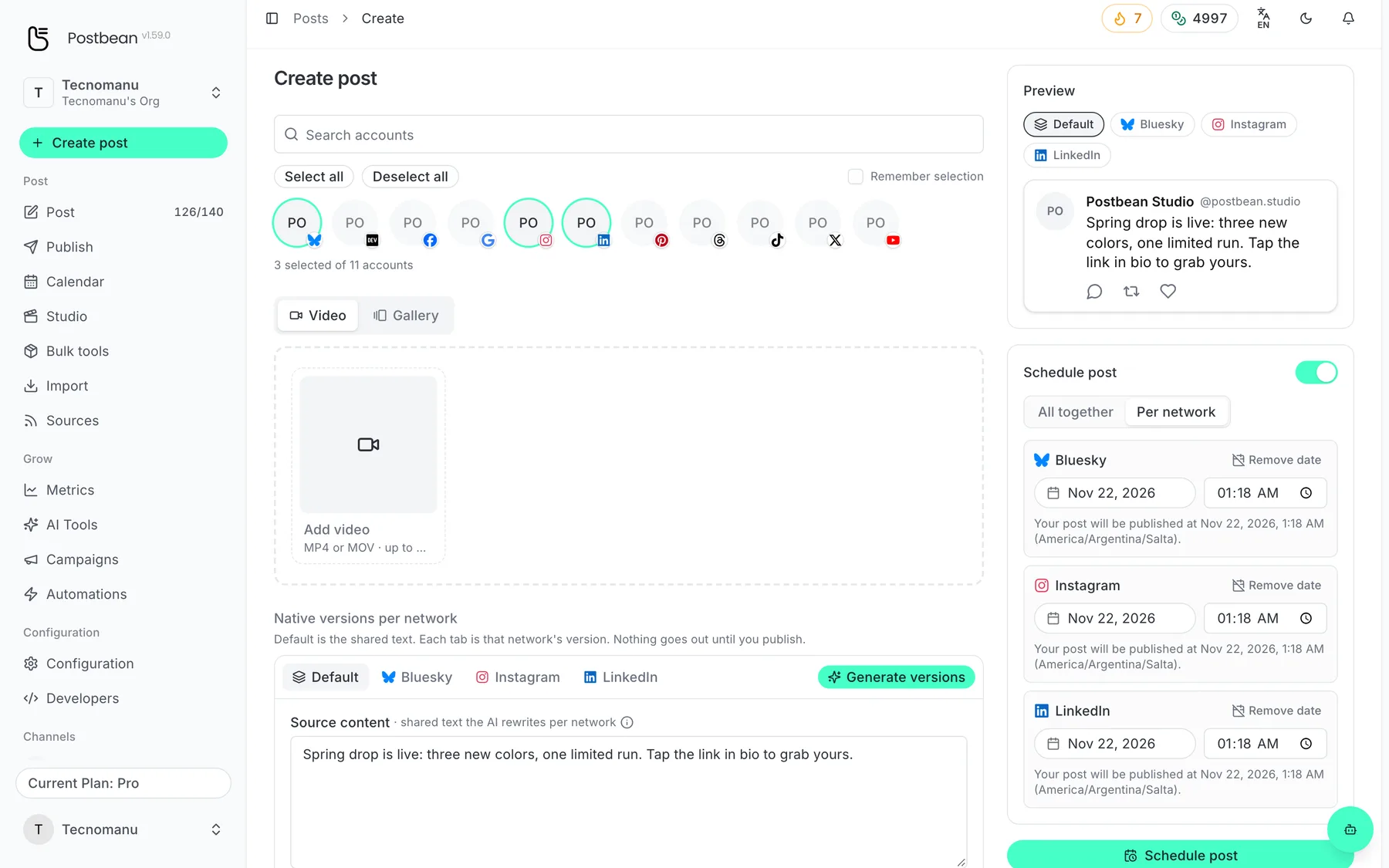
Each network can go out at its own time.
Move one account without moving the rest
Find the saved post in Publish → Queue and open its detail. On the account that needs to change, use Schedule this network to set its own date and time. If the post originally used the same time for all accounts, the other pending accounts keep their prior time. The composer groups times by platform, so two selected Instagram accounts initially share a single Instagram time there. To split them, set the new time from the specific account’s row in the post detail.
The whole-post Reschedule action is different. It sets a single date and replaces separate dates, so it’s the right choice when everything should move together. Use the action on the account row when it’s only one send that needs to move. If you switch back to All together in the composer, check the suggested time: the picker uses the earliest of the separate dates. Scheduling controls are for accounts that haven’t already published or started publishing. Changing a pending account’s time won’t edit something already on a social network.
Check the next send, then check the results
When the dates are split, the post’s next scheduled time corresponds to a pending destination. Open the row or the post detail to check exactly who’s waiting and for when. For the Tuesday and Thursday example, the Tuesday account can show as published while the post stays scheduled for the Thursday account. Don’t read a scheduled badge as proof that nothing has gone out yet.
You can use the calendar to check what else is planned, but inspect the account rows for the exact dates on this post. For more on workspace time zones and queue status, see the scheduling guide. Create a Postbean account to set up your first split schedule.
Related reading
Frequently asked questions
Can I send to one network now and another later?
Yes. In Per network mode, set a future time for the network that should wait and leave the immediate one without a date. Check the confirmation before sending.
What time zone does the composer use?
It uses the workspace time zone, not the time zone on your device or the account's audience.
Can two accounts on the same platform have different times?
The composer sets one time per platform. To give two accounts on that platform different times, schedule them separately from the post detail.
Can I move one date without moving the rest?
Yes. In the post detail, use Schedule this network on the account that needs a new time.