If you’ve been posting directly on Instagram or YouTube, you don’t need to send those posts again to include them in your Postbean history. Pull in a batch of recent posts and save only the ones you want on record. If the goal is to adapt an old caption for a different channel, use the imported item to make a new draft instead. You can do both with the same item: the record of what already went out stays separate from what you plan to publish next.
Pull recent posts from a connected channel
- Go to Import → From your channels in the workspace that contains the source account.
- Select the accounts you want to pull from. The channel picker marks accounts that don’t have a supported read integration and won’t let you select them.
- Click Pull posts. Postbean requests up to 25 recent posts per selected account in the dashboard. The result tells you how many items are new and how many were already imported.
- Look through the imported list. Stop here if you only want to review the items. Pulling posts doesn’t save them to publishing history or put them in the queue.
Postbean implements channel pulls for Facebook, Instagram, Threads, Bluesky, and YouTube. You may have other connected accounts that can publish but can’t pull posts. The network determines which posts it returns. A pull is useful for catching up with recent work, not for recovering your entire account archive or retrieving drafts from the network.
See it in the app
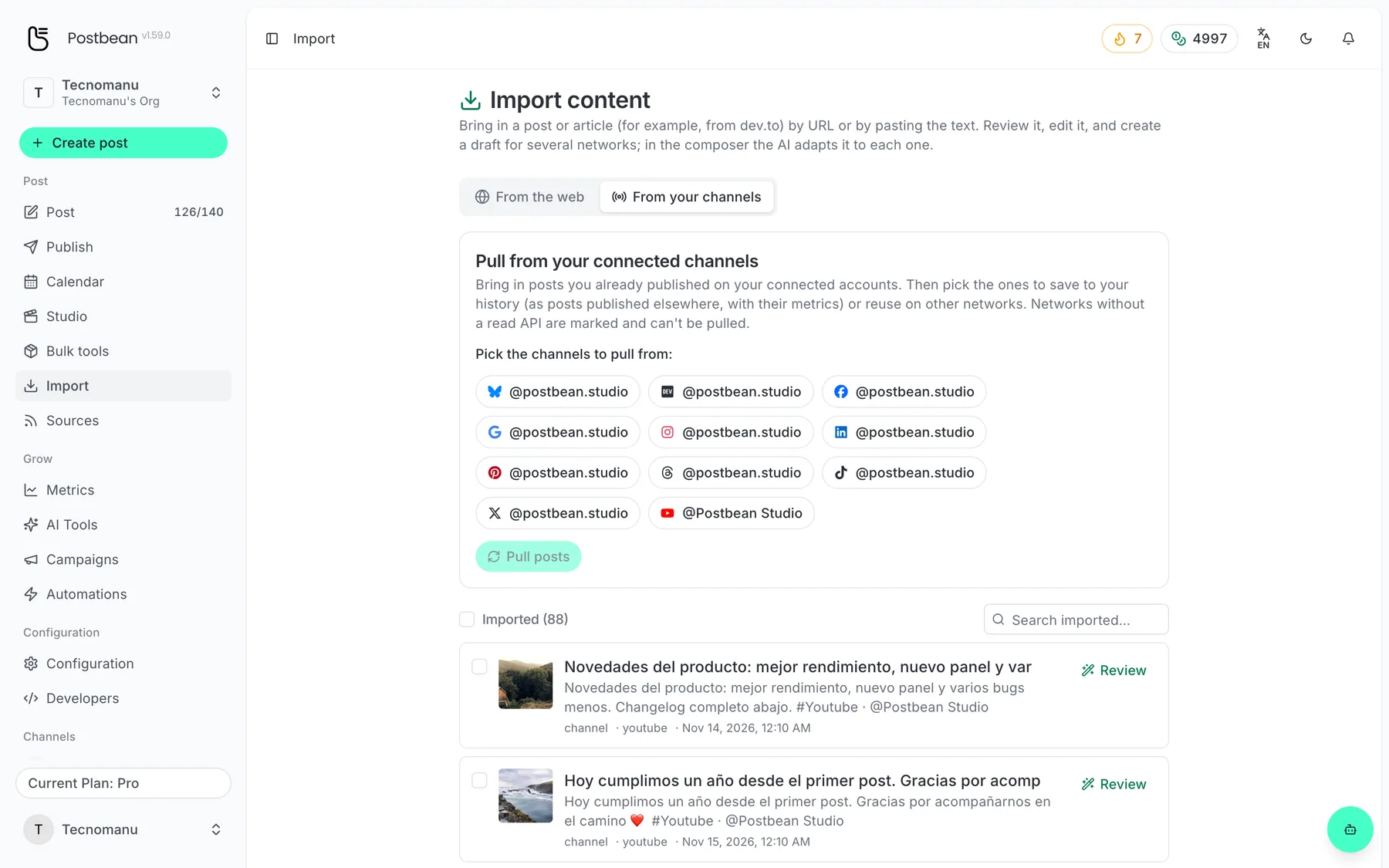
Bring in what you already published, with its metrics.
Save the posts you already published
Select the imported channel posts you want to keep and click Save to history. The list marks saved items as in history. The history entry carries the original publication date, link, and metrics when the network supplied them. You can find it under Publish → Sent. It’s a record of the original publication, not a new post on the network. If the same publication on the same account was already tracked, saving it doesn’t create another history entry.
For example, say you published a video on YouTube before connecting the channel to Postbean. Pull the recent uploads, select the video, and save it to history. If metrics are available and the video’s publication date falls in the selected range, it can also show up in the post table in Analytics. It won’t appear as something you scheduled, and the import doesn’t recreate the full day-by-day performance of the video.
Make a draft from an import
For a batch of channel posts, select the items, click Republish, and choose the destination accounts. Despite the button’s name, you get drafts: one per selected item. Open them in Publish → Drafts and check the wording and attachments for the new destinations before scheduling anything. If you’re only adapting one post, open it for review first and edit the base text there. That gives you a chance to remove references to the original channel before creating the draft.
If you want to start with an article or a single caption rather than pulling a channel, choose From the web. Enter a URL and click Import URL, or paste the text and click Import text. If Postbean can’t extract the text from a page, you can paste the part you want to work with. Open the item to edit the base text, then create a multi-network draft. If Postbean detects a cover image, it tries to attach it; check what arrived in the composer instead of counting on the original media to carry over. URL and text imports are draft material, not history entries with social metrics.
Create a Postbean account to connect a channel and try a pull before deciding which posts to keep.
Related reading
Frequently asked questions
Can I import all my old posts at once?
The channel pull requests recent posts, up to 25 per selected account in the dashboard. What comes back depends on the network; this is not a full archive import.
Does Save to history post anything to my channels?
No. It records the existing publication in Postbean without sending it to the network again.
Does Republish send posts immediately?
No. In Import, Republish creates one draft per selected item for the accounts you choose. Review the new drafts before publishing or scheduling them.
Can I save a pasted article to my publishing history?
No. Content imported by URL or pasted text can be used in a draft. Only posts pulled from connected channels can be saved to history.