You planned a Friday announcement, then the event moved to Monday. Open Publish → Queue to find the scheduled post and change its date before it goes out. This is also where you can see a send in progress: a post you told Postbean to publish now can be queued or publishing before a network returns a result.
Put a post in the queue and find it again
- Open Create post and select the accounts. Write the caption, attach any media, and check the composer preview before you schedule it.
- Turn on Schedule post. Pick a date and time in your workspace time zone, or choose separate dates if different networks should go out at different times.
- Submit and review the confirmation. In Publish → Queue, find the post and expand its row to see the destination accounts. Use the channel or tag filters to narrow the list if you’re looking for a specific campaign.
If you saved the post without scheduling or sending it, look in Drafts instead. Drafts don’t go out just because you’ve selected accounts and written the copy. Once you confirm a schedule, Postbean handles it on the server. The browser can be closed. A scheduled time is when the send becomes due, not a promise that the network will show the post at that exact instant. Upload processing, the publishing queue, and the network’s response can affect when it appears.
See it in the app
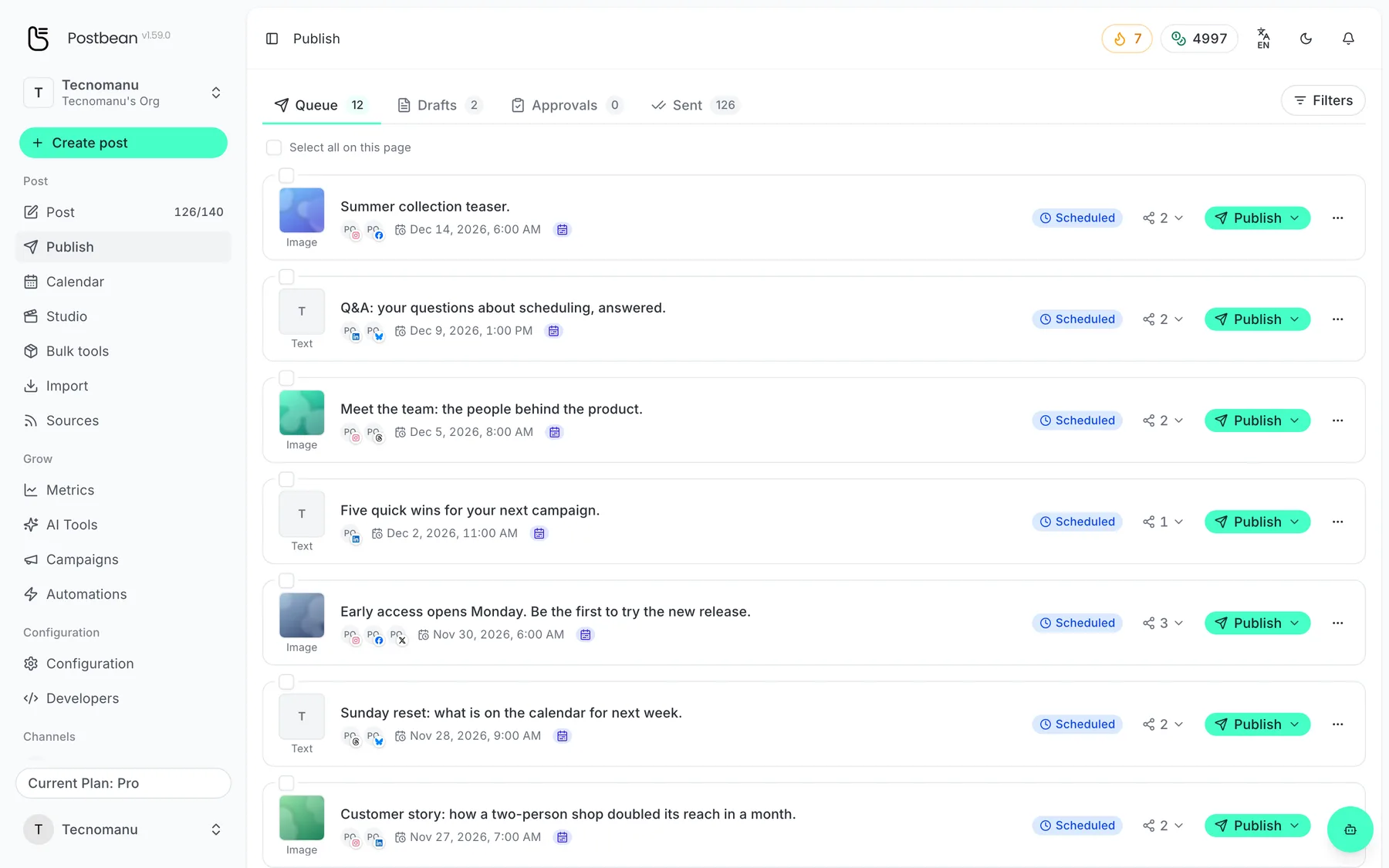
Queue, drafts, approvals and sent in one place.
Schedule it and it lands in the queue.
Your scheduled posts, ready to go.
Change the plan before it goes out
For a post that’s still scheduled, open the Publish menu on its row and use Reschedule to set a new date for the whole post. This replaces separate network dates with one shared time. If only one account needs a different date, open the post and use the scheduling action on that account instead. Check the other rows before you confirm a change to the whole post; it’s easy to move a Friday send you meant to leave alone.
Use Edit from the post menu if the copy or media needs work. If a scheduled post hasn’t gone out anywhere and the campaign is on hold, use Cancel schedule in the post menu. It clears the schedule and returns the post to Drafts. Choose Publish now from the Publish menu only if you’re ready to send the entire scheduled post early. These are different actions: rescheduling changes the date, cancelling takes the post out of the schedule, and publishing now starts the send.
With per-network scheduling, a post can still be in the queue after one of its accounts has published. Expand the row to tell the account that already went out from the one that’s still waiting. Cancelling a schedule won’t pull down anything already live.
Check where the post landed
Once the post has finished, look in Sent. Its rows are per destination, so you can see a successful send next to a failed one instead of treating the post as all-or-nothing. When a successful destination has a link, use it to open the live post. Open the post detail to read an account’s error if a send failed. A connection problem calls for checking that account in Connections; sending the same post to every account again won’t fix it. Once you’ve addressed the cause, retry the affected account from the post detail without resending to the others.
Use the calendar when you’re trying to see what is planned for a particular day. Use the queue when you’re checking an individual post and its destinations. If you don’t have an account yet, sign up for Postbean. The scheduling guide shows where the queue and calendar sit in the panel.
Related reading
Frequently asked questions
Do I need to keep Postbean open?
No. Postbean processes scheduled sends on the server. You can close your browser after confirming the schedule.
Why isn't my draft in the queue?
A saved draft lives in Publish → Drafts. The queue is for scheduled posts and sends that are in progress.
What if only one account fails?
Open the post, check the error on that account, and retry that account alone when you're ready.
Does cancelling a schedule take down a live post?
No. Cancelling stops scheduled work; it does not remove anything already live on a social network.