
Before you write another post, you might need to know whether the last one went out. Open the Postbean Assistant and ask. It can read recent posts and upcoming scheduled items in the workspace you’re in, then help you turn a follow-up into a draft. You can use it from the panel without setting up an external chat client or copying a post into one.
Check what went out before adding to the calendar
- Go to the workspace you want to check. If you manage more than one brand, look at the workspace name before opening the chat.
- Click Open assistant at the bottom right of the panel. You can type your own request or choose one of the suggestions, such as asking what you’ve published lately or what’s scheduled next.
- Narrow the question if needed: “What was published this week, and what’s the next scheduled post? Include the network and date for each.” The assistant can look up recent posts by status or pull a publishing recap. If you’re looking for one specific post, give its topic so you can check that the answer refers to the right one.
- Compare anything consequential with the calendar or the post details. A chat summary can help you spot what to check, but it isn’t a replacement for checking the status of the account and post you care about.
You can ask about campaigns in the same chat. For example, ask which campaigns are in the workspace before drafting another announcement. That helps when a teammate set up the campaign and you only know the name of the product or event. Asking for a recap and asking for new copy are separate jobs; start with the recap if you’re still deciding whether the post is needed.
See it in the app
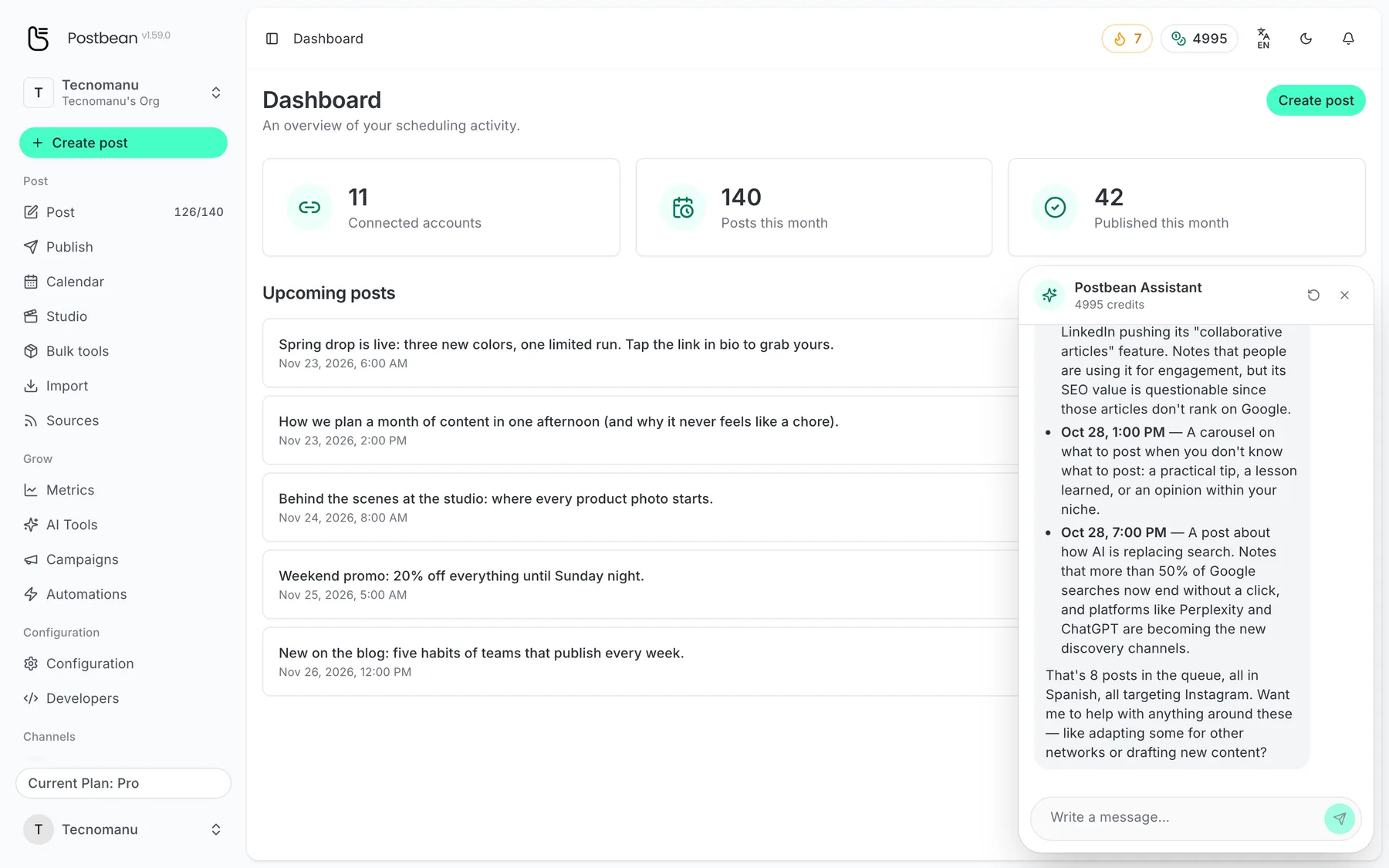
Ask the assistant about your calendar.
Describe the post and the assistant drafts it.
Ask for a draft and name the destination
Say a product demo already went out and the follow-up needs to tell people where to find the replay. Try: “Create a text draft for LinkedIn only. Say the demo replay is available. Leave a placeholder for the link and don’t mention a discount.” Give the assistant the facts to use rather than asking it to fill in the gaps.
Name the network even if you’ve only been talking about one post. When the draft action has no destination, it can use all connected accounts. A named network can still have more than one account in the workspace, so check the selections in the composer before setting a date.
When the assistant returns a draft link, open it in the composer. The assistant’s draft action creates a text post; add media yourself if the format calls for it. Replace the replay placeholder, check the selected accounts, and read the saved caption once more. Keep it as a draft if the link isn’t ready. Otherwise, schedule or publish in the composer. The built-in assistant doesn’t take that final action.
Separate the chat from generation
Asking about upcoming posts or checking your credit balance doesn’t spend AI credits. A content-generation action can. For example, asking the assistant to generate a network-specific version of a caption uses one credit for that version. If you want to try a few different openings without a conversation about your workspace, use the AI writing tools instead.
For a different task or brand, switch to the right workspace. Use New conversation if you want to start without the previous thread in view. Starting a new chat doesn’t undo a draft you already created; go to the composer to edit it or check its status. The first post guide walks through the choices you’ll see there.
This assistant is the one in the Postbean panel. To give an outside MCP client access, use MCP and the REST API and choose the key’s permissions separately. To try the built-in chat, create a Postbean account.
Related reading
Frequently asked questions
Can the built-in assistant publish for me?
No. It creates drafts for review. You schedule or publish them yourself in the composer.
Does asking what's scheduled use AI credits?
Reading workspace information through the chat does not use AI credits. Content generation can.
Do I need an API key to open the assistant?
No. The assistant is in the Postbean panel. API keys are for external integrations.
Which accounts will a draft use?
Name the intended networks in your request and check the accounts in the composer. An unspecified target can default to all connected accounts.