
You have the details for a post: a Saturday workshop, twelve seats, and a booking link. What you don’t have is a first sentence. In Postbean, you can turn those notes into a draft, or paste a caption you’ve already written and ask for different openings. Either way, the result is yours to edit before it goes anywhere.
Start with the part you need help writing
Open AI → Tools in the Postbean panel. Choose Text when you have a brief but no copy. Use Hooks when the body is fine and the opening is holding you up. Ideas gives you angles for a topic you haven’t settled on yet. If you need something longer, Thread breaks source text into shorter pieces. Script gives you a starting point for a short video, with a hook and lines for voiceover and on-screen captions. It writes the script; it doesn’t shoot or render the video.
For the workshop announcement, try this:
- Select Text and pick the language you want the result in. The output language is a separate choice from the language of your brief.
- Enter the confirmed details: “A beginner printmaking workshop this Saturday at 10 a.m. Materials included. Twelve seats total. End by asking people to book. Don’t add a price or say how many seats are left.”
- Click Generate. Check that the draft says twelve seats total, not twelve seats available. If a fact is wrong or the wording feels off, rewrite it before you move on.
- Choose Send to composer. The text opens in a new post form. Select the accounts, add the booking link and any media, then save it as a draft or choose when to send it.
If you only need a better lead, paste the draft into Hooks and set the count. You’ll get alternative first lines to compare. Keep the body if it already does the job; there’s no need to regenerate the whole announcement.
See it in the app
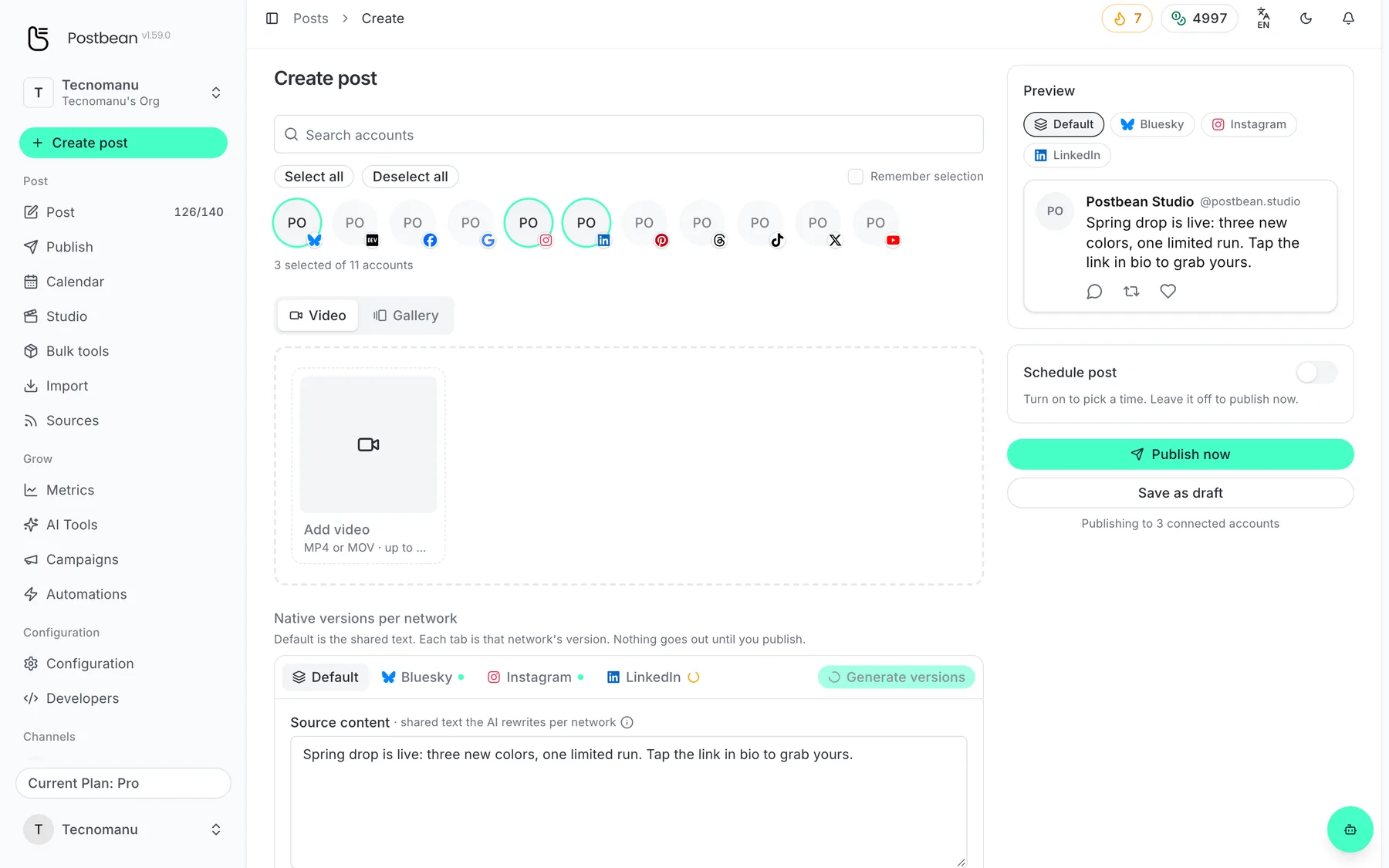
The AI rewrites your text for each network.
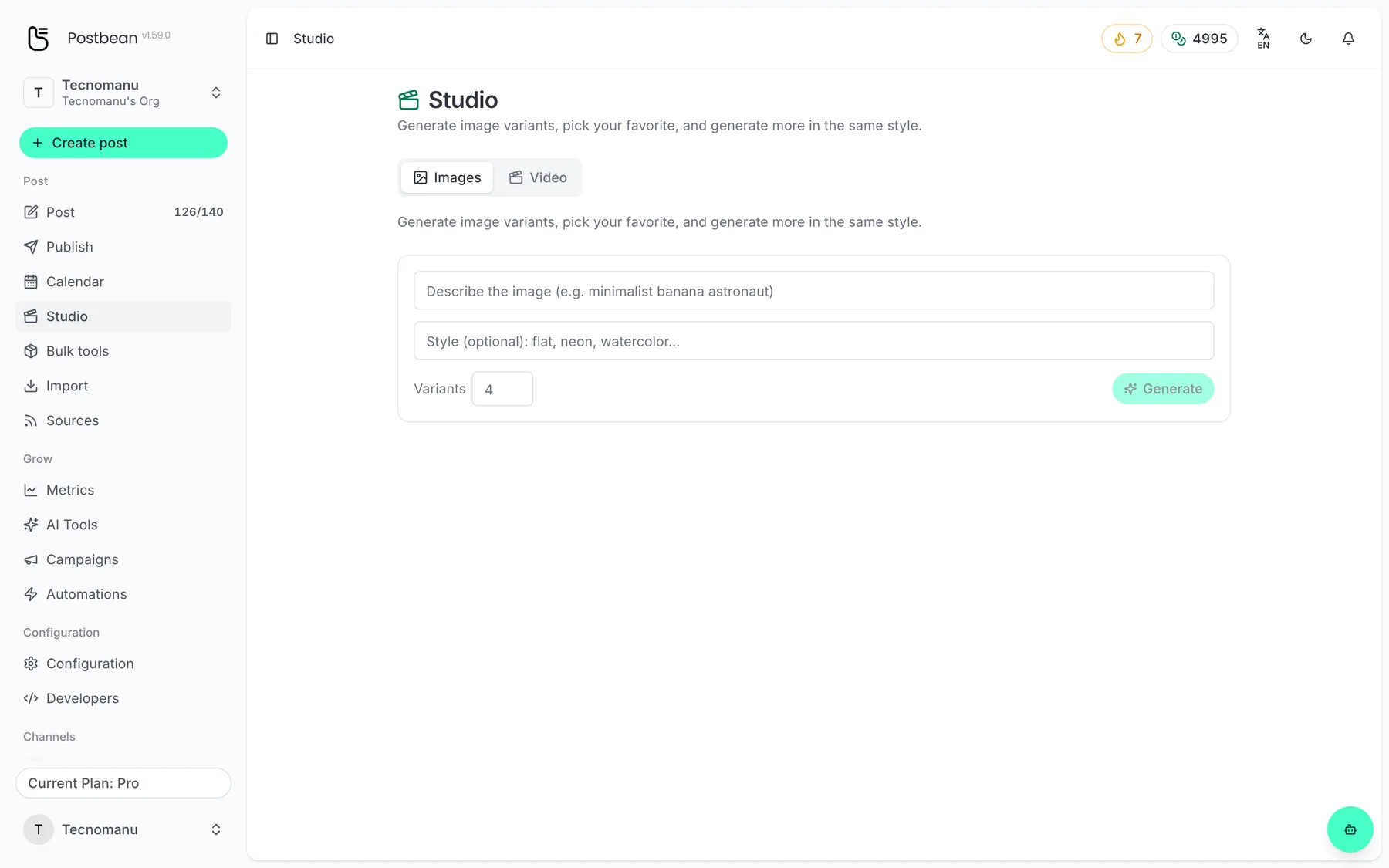
Generate image variants for your posts.
One click, one tailored text per network.
Write one base caption and change what each network needs
The composer lets you keep a shared caption and set a different version for a selected network. For instance, you might use the base text everywhere and adjust just the LinkedIn version to explain who the workshop is for. In the network’s section of the composer, generate a version or edit it yourself. A change there doesn’t rewrite the other networks’ captions.
Check the destination’s limits before you schedule. A caption that fits on LinkedIn may be too long for Threads. Text generation also doesn’t attach the photo or video a post format needs. See how to customize captions by platform for the composer steps.
Give the writer instructions it can reuse
Under AI → Brand Voice, you can describe the brand, set a tone, name your audience, and list words to use or avoid. Start at the workspace level and add network-specific instructions when you need them. Fields you leave empty in a network override inherit the workspace settings. “Say ‘workshop,’ not ‘masterclass’” is easier to apply than “sound like us.”
Use Memory to review saved preferences and add explicit rules. Corrections can be recorded as signals, but learning from edits is experimental and is not applied automatically by default. Add a rule manually when you want it used in future generation, and delete rules you no longer want. This is useful for wording preferences; check dates, prices and availability against your own notes each time.
How credits work
A run of Ideas, Text, Hooks, or Script uses one credit. Thread uses two. Generating a platform version uses one credit per version. Credits are shared across the organization’s workspaces, so a teammate’s generation can draw from the same balance. Editing the text yourself doesn’t call the generator again.
If you’d rather ask a question about your workspace and then turn the answer into a draft, open the Postbean Assistant. For a first pass from a brief, create a Postbean account and start with Text.
Related reading
Frequently asked questions
Does generating text publish a post?
No. Send the result to the composer, review it, and choose whether to save a draft, schedule it, or publish it.
Can I generate copy in Spanish?
Yes. Choose the output language in the writing tools. English and Spanish are both available.
Can I adapt just one network's caption?
Yes. Generate or edit a version for that network in the composer without rewriting the base caption.
How many credits does a text draft cost?
The Text tool costs one AI credit. Thread generation costs two, and a platform version costs one.