
You have a finished clip and a subtitle file. In Postbean, you can put the two together before the post goes out. The composer keeps your source clip and builds a separate MP4 with the text drawn on the frames. That means the words are visible when someone watches without sound, even on a destination that doesn’t take a separate subtitle file through Postbean.
Burned-in text is always visible. If your brief calls for a track viewers can enable, turn off or switch to another language, this feature doesn’t create that track. It also doesn’t transcribe the clip or translate the words. Start with a timed file you made or exported elsewhere.
Add subtitles to a clip
- In Create post, open Video and upload the clip. For a straightforward subtitle workflow, start with a single video rather than a gallery of clips.
- Under the video, use Upload SRT to attach an
.srtor.vttfile. Keep the timed text at or below 512 KiB and 500 cues. A cue is a block of text with a start and end time; it can contain more than one line. - Use Edit text to correct a line or its timing. Choose top, center or bottom, then play the clip in the preview. Check a few cues against the speech and see whether the text covers a face or a label in the shot.
- Save as draft to start rendering without sending the post. The preview shows text over the original while you edit; the file Postbean publishes is the rendered MP4. Check the rendering status before you count on the clip for a scheduled slot.
A short timing check is worth doing even if the file worked on a previous edit. Say the first line should appear half a second in and disappear at two and a half seconds. The SRT timing for that block is 00:00:00,500 --> 00:00:02,500. If you trimmed the intro after exporting the file, check the end of the clip too. A subtitle track can look fine on the first line and drift out of step later.
See it in the app
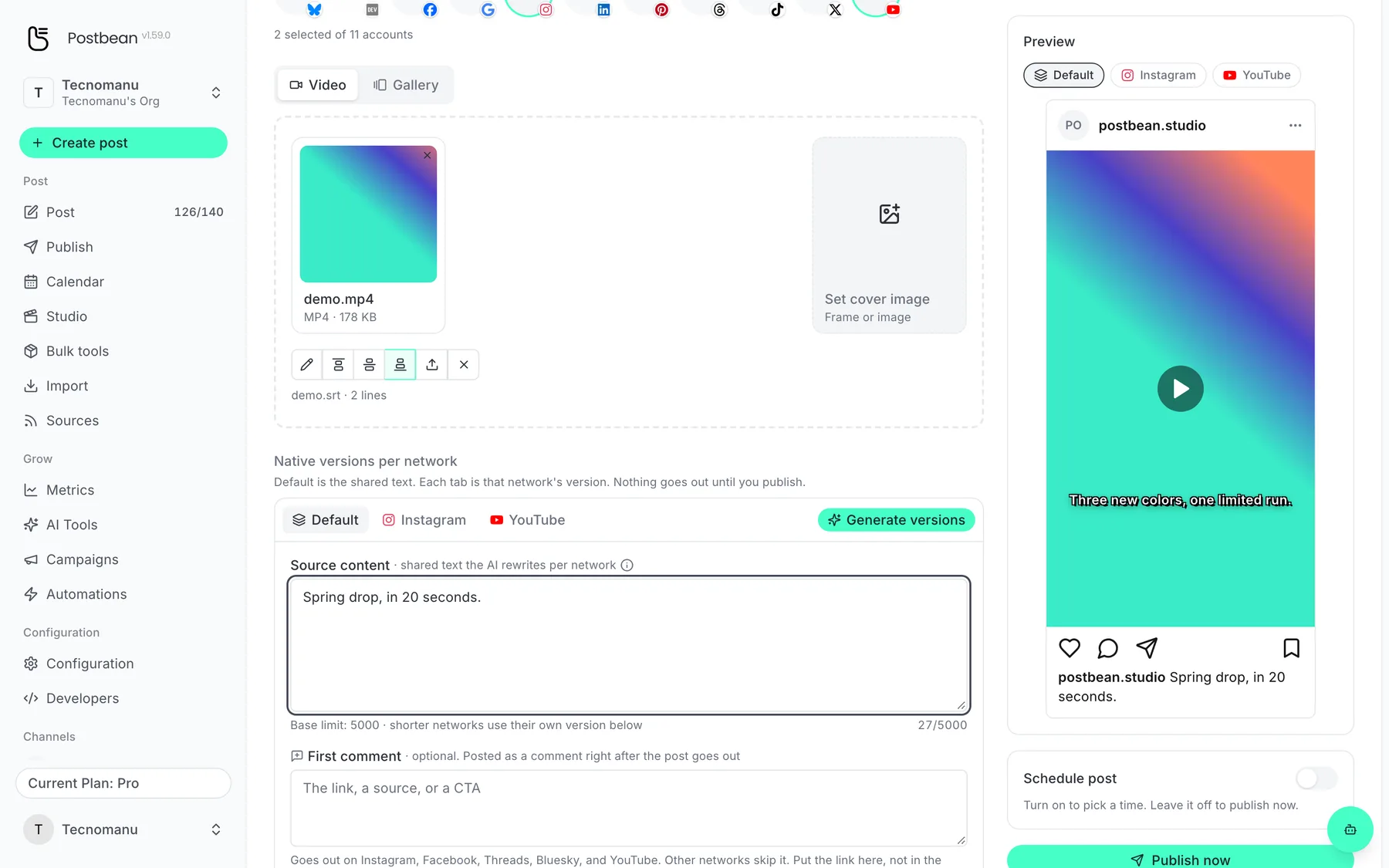
Upload an SRT and the subtitles are burned in.
Use a different file on one network
Open Native versions per network and select the destination tab. Under Captions for that network, upload its subtitle file or edit the inherited text. You can also choose a different vertical position. For instance, leave English as the default and add a Spanish-language file to the Instagram tab. If that tab has no version of its own, it uses the default. Clearing its replacement restores the default rather than turning off subtitles for that network.
If you want text on just one destination, leave the shared subtitles unset and add the file in that destination’s tab. The guide to per-network versions shows where to find the tabs. A change to the timed text or its position needs a fresh render when you save. It doesn’t change a video that’s already live.
Give the render time to finish
The captioned MP4 is a vertical 1080 × 1920 output. If you’re starting from a wide clip, allow for that change in shape when planning the footage. Watch the preview with the sound off as well. A line timed perfectly to the audio still needs to stay on screen long enough to read.
Postbean waits for the captioned file before publishing. It doesn’t send the plain clip as a fallback if the subtitle render isn’t ready. If rendering fails, check the timestamps and edit or replace the file, then save again. For a time-sensitive post, save a draft early enough to check the render before the slot.
Create a Postbean account to add subtitles to your next video.
Related reading
Frequently asked questions
Can viewers turn off these subtitles?
No. Postbean burns them into the image of the published video. They aren't a separate closed-caption track.
Does Postbean overwrite my source clip?
No. It keeps the original and renders a separate MP4 for publishing.
Can two networks use different languages?
Yes. Upload a timed subtitle file for each language you need and set it in the appropriate network tab. Postbean uses the text you supply.
What happens if I clear a network's subtitle version?
That network goes back to the post's default subtitles if you've set them.