If you run social for a bakery and a bike shop, their Friday posts don’t belong in the same queue. Give each client a workspace and each one has its own connected accounts, drafts, calendar, and media. You can move between them without switching Postbean logins. What you cannot do is invite the bakery owner into that workspace from the panel. Separate workspaces are available today; self-serve team access is not.
Set up a second workspace
Additional workspaces are part of Pro, and only the organization owner can create them. Open Settings → Workspaces under Organization, select New workspace, give it a name, and select Create workspace. Postbean opens the new workspace as soon as you create it. It starts empty. The accounts you connected in your first workspace don’t appear in this one, so go to Connections and connect the accounts you intend to post to from here.
Use a name you can recognize at a glance in the switcher and in the Workspaces list. If you manage two brands with similar names, add the location or another detail that makes them easy to tell apart. When you’re ready to schedule the first post, check the active workspace and the selected social account in the composer. Naming the space helps you spot mistakes; the account you select is still what determines where the post goes.
See it in the app
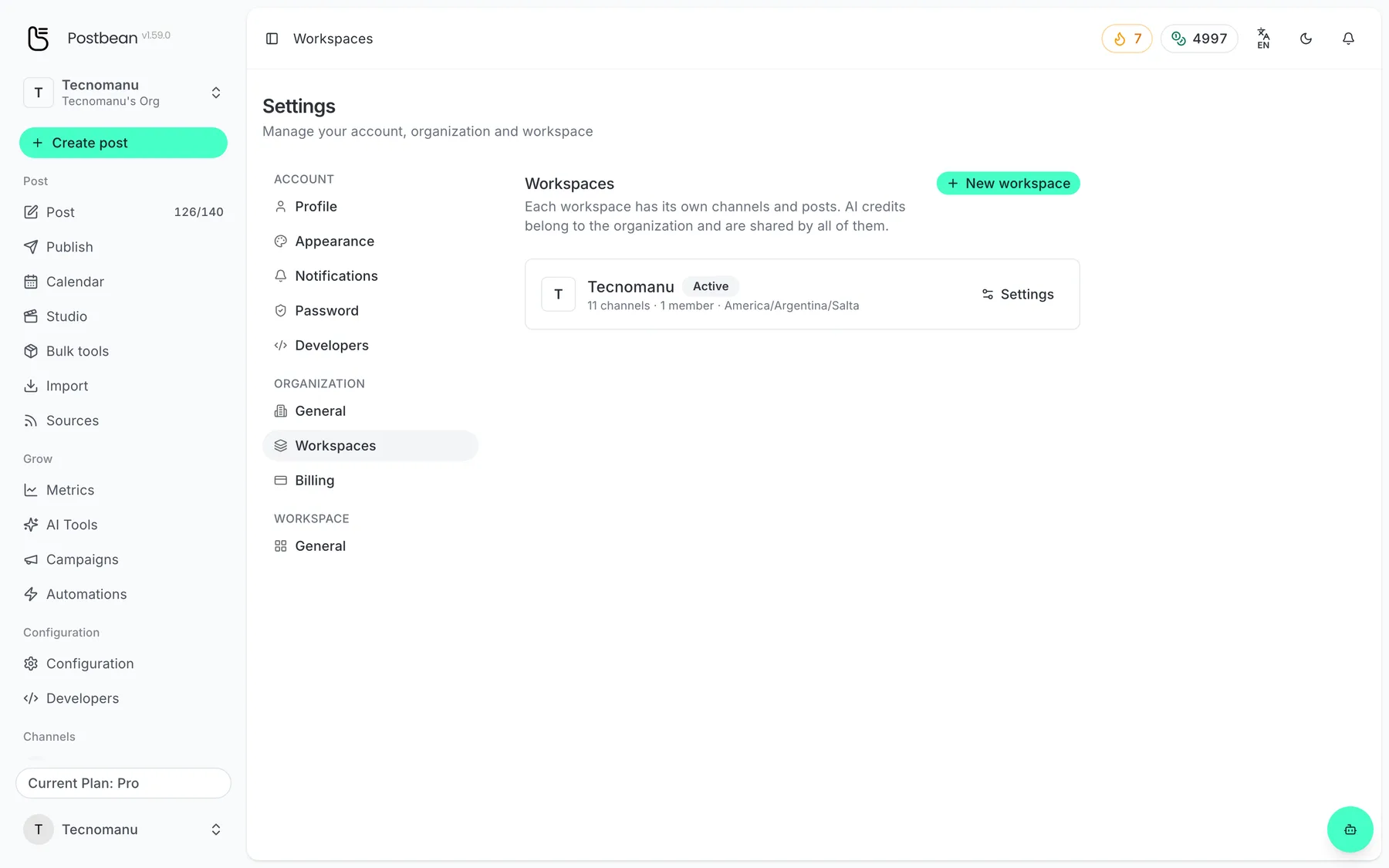
Workspaces keep each brand’s channels and posts apart.
Move between clients without losing your place
Use the workspace switcher or open Settings → Workspaces and choose Switch next to another space. The list marks the active workspace and shows each space’s channel count and effective timezone. You can keep one workspace’s calendar open in one tab and a different workspace’s queue open in another; switching in one tab doesn’t change which workspace the other tab is showing.
For a weekly review, open the calendar in the client’s workspace to check the dates. Then open the publish queue there to work through what still needs attention. Don’t expect either view to combine posts from the whole organization. That separation applies to media, too. An image uploaded to the bike shop’s workspace does not become an attachment in the bakery’s workspace. AI credits are the exception: usage in either workspace draws from the same organization balance.
Put each schedule on the right clock
The organization owner can set a default timezone under Settings → Organization → General. If one client works in another timezone, open that workspace and go to Settings → Workspace → General. Workspace owners and admins can choose a different timezone there or set it back to the organization default.
Say your organization uses New York time but the next campaign is for a shop in Los Angeles. Set that workspace to Los Angeles time before you start scheduling, then check the timezone displayed on the calendar. If you change the setting after a post has already been scheduled, the post still goes out at the instant you originally chose. Open it and reschedule it explicitly if you need to move the actual publication time. The guide to scheduling ahead explains which clock the composer uses.
What to do if someone else needs access
A workspace is useful even if you’re the only person using Postbean. It gives each brand a separate set of accounts and posts. It doesn’t give you an invite link, a screen for adding members, or a way to let a client log in just to check their calendar. Don’t hand over your password to get around that. If a coworker is going to manage the social accounts in Postbean themselves, they can do it from their own account and connect the accounts they are authorized to use there. Their account is separate, not an extra seat inside your workspace.
If someone only needs to see the next week’s copy, agree on where they should review it outside Postbean and make the scheduling changes yourself. See the team access guide for the limits on sharing access. To organize your own publishing, create a Postbean account and start with one workspace; add another on Pro when you need a separate set of channels and posts.
Related reading
Frequently asked questions
Who can create another workspace?
The organization owner can create additional workspaces on Pro.
Can I invite a client or coworker to my workspace?
No. The panel does not have a member invitation flow or a client login you can grant from workspace settings.
Do my workspaces share social accounts?
No. Each workspace has its own connected accounts, posts, and media. AI credits are shared at the organization level.
Does changing a workspace’s timezone move scheduled posts?
No. The displayed local time changes, but the previously scheduled instant stays the same.