
When a post goes to more than one network, one account can fail while the rest go live. You don’t need to keep the queue open to find out. Postbean can notify the post’s author in the dashboard, send a browser push, or email a summary once publishing has finished. You decide which of those channels you want for each kind of result.
Choose what you want to hear about
Open Settings → Notifications under Account. The rows are events, such as Post published and Publishing errors. The columns are Email, Push, and Bell. Set the checkboxes for the notices you want, then select Save. These are account preferences, not a separate setup for every workspace.
If you want to know about problems without getting an alert every time a scheduled post goes out, leave Publishing errors on for the bell and turn off Post published in that column. You can make a different choice for email. Keep in mind that a post with both successes and failures can still appear in your alerts if you opted in to errors. The settings aren’t a rule to hide an entire post just because part of it succeeded.
A dash means that event doesn’t support the channel. Automation notices go to the bell, while Tips and weekly summary goes by email. The tips setting is separate from the result email for a single post, so you can turn off the weekly summary and still receive publishing results.
See it in the app
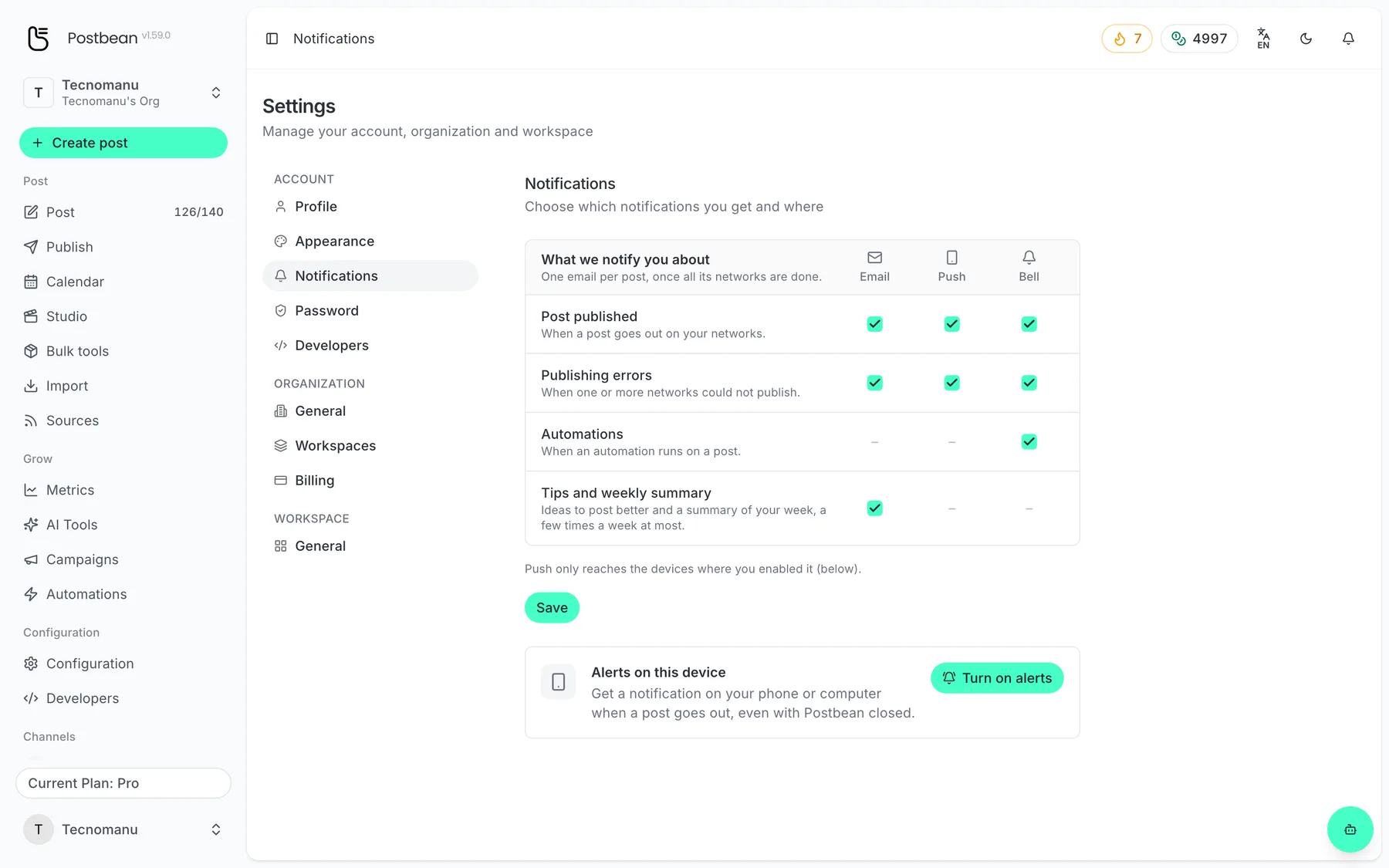
Choose what you get and where.
Know when each notice arrives
Picture a post with LinkedIn scheduled on Tuesday and Instagram on Thursday. When the first batch finishes, the bell and push can report LinkedIn without waiting for Instagram. When the later batch finishes, it can generate its own notice. If several networks finish in the same batch, Postbean groups their results instead of sending a separate notice for each network.
Email works differently. Postbean waits until no destination for that post is pending or publishing. If email is enabled for the outcome, it sends one summary with the results by network, including links and failure reasons when available. In the Tuesday and Thursday example, no Tuesday email is expected while Instagram is still pending. If Instagram fails and you retry it, a new summary can arrive when that retry finishes. See scheduling at different times by network if you want to set up that kind of schedule.
Turn on browser push where you need it
Checking Push for an event does not give Postbean permission to show notifications on a particular device. Below the preference table, select Turn on alerts and allow the browser’s notification request. Do that on each browser or device where you want push. You can also turn it off for one device from the same card without turning off email or the bell.
On iPhone or iPad, add Postbean to your Home Screen from Safari’s Share menu first. Open Postbean from the Home Screen and turn on alerts there. If you previously blocked notifications, allow them in your browser’s site settings before trying again. If the device or browser doesn’t support push, use email or the bell instead.
Follow up on a failure
Open the bell and choose View all to scan your notifications. You can filter for publishing failures or unread notices. Open the affected post to see which accounts succeeded and which need attention. If it already went live elsewhere, check the failed destination before you retry so you don’t treat a partial result as a total failure. The publish queue gives you another place to check a post’s status, and publishing troubleshooting covers issues such as a disconnected account.
Create a Postbean account to set your notification preferences, then check the bell after your first scheduled post goes out.
Related reading
Frequently asked questions
Who gets a publishing notification?
Postbean sends publishing notifications to the post’s author, subject to that person’s settings.
Will I get an email for every network?
No. When enabled for the outcome, you get a summary after the entire post finishes. A retry can produce a new summary when it finishes.
Why does the bell show a result before I get an email?
The bell reports groups of networks as they finish, while email waits until no network is pending or publishing.
Can I keep error alerts but stop success alerts?
Yes. Turn off Post published for the channels you want to quiet and leave Publishing errors on. A partial success can still notify you as an error.