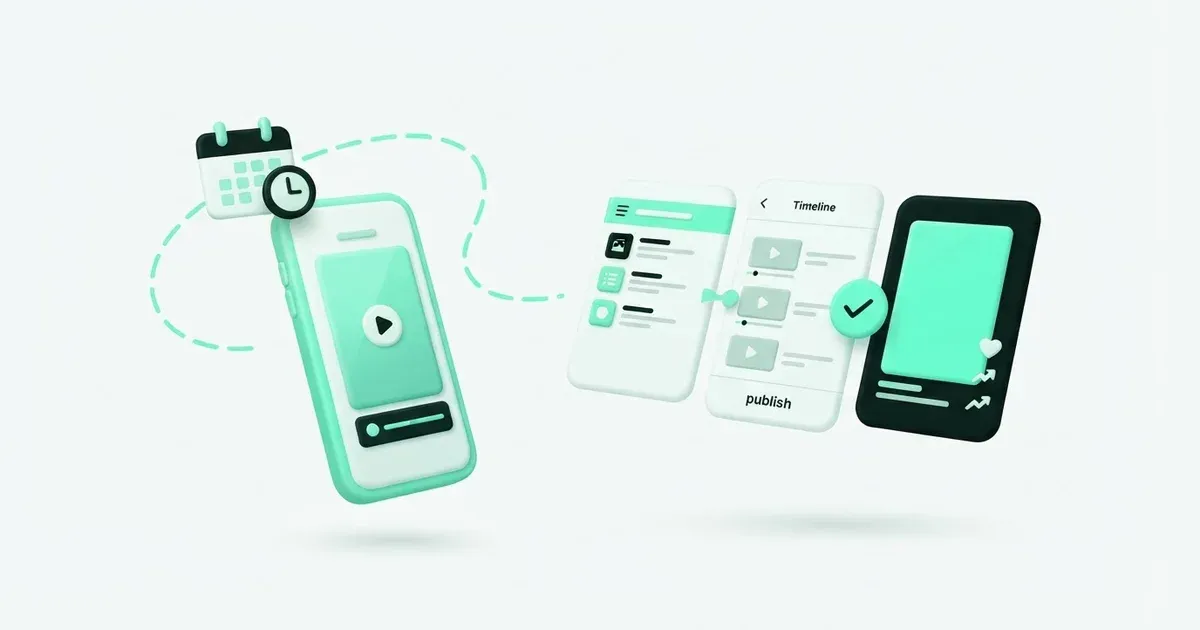
Scheduling a YouTube Short involves two separate checks: when it should become available and whether the file qualifies as a Short. A title containing #Shorts does not repair a video with the wrong shape or duration. Start with the right export, then schedule it.
YouTube Studio offers native scheduled publication. Postbean can submit the same finished clip alongside versions for other networks. The native route gives you YouTube’s own upload controls; the shared route keeps the caption, title and timing work together. In either case, check the video after processing.
Prepare a qualifying file
YouTube’s Shorts eligibility guide covers square or vertical uploads up to three minutes. For a new tutorial, a vertical export is a practical starting point. That recommendation describes the workflow here, not a guarantee about performance.
The same guide says Shorts longer than one minute with an active Content ID claim are blocked globally. Confirm rights to the soundtrack before choosing your release time. Music available within one network is not evidence that an exported file is cleared for every other destination.
Postbean accepts MP4 and QuickTime video uploads up to 100 MiB. Keep a clean source copy and name it clearly enough to distinguish the final cut from an earlier review version. File size is a separate limit from Shorts duration and aspect ratio.
Schedule inside YouTube Studio
- Open YouTube Studio, choose Create and upload the video.
- Complete the details and required audience information.
- On Visibility, choose Schedule, set date, time and timezone, then confirm.
- Check the scheduled entry in Content.
YouTube’s scheduling instructions describe a private video becoming public at the chosen time. Check the Content entry rather than assuming an unfinished upload is scheduled. A draft, private upload and scheduled public release are different states.
Connect the correct channel in Postbean
Open Connections in the intended workspace and choose YouTube. Complete Google authorization and check the channel returned to Postbean. If your Google identity can access several channels, verify the actual channel name rather than only the email used to sign in.
Do that before preparing the post. A polished title does not compensate for uploading under the wrong channel. For a new connection, use one representative clip and inspect the native result before scheduling a month of Shorts.
Connection success confirms authorization, not public visibility. YouTube can impose restrictions on uploads from unverified API projects. If the native video is private after a successful transfer, inspect it in Studio instead of repeatedly uploading another copy.
Schedule a Short with Postbean
1. Attach one finished video
Open Create post and select YouTube. Upload the clip and review the beginning, middle and end. Check that titles inside the video do not contain an old date or an offer that differs from the caption.
Postbean’s YouTube path needs a video. A still cover image alone is not a Short. If another selected network is supposed to receive a separate edit, create a separate post for that file. Text overrides customize the wording; they do not produce a new cut of the shared source video.
2. Set the YouTube title and format
In YouTube’s network options, provide an explicit title and select the Short format. The title limit is 100 characters. Postbean adds #Shorts for the short option when it is absent, reserving room within that title budget.
Review the effective title after shortening it. Put the subject early enough that a necessary condition is not lost at the end. “Repair a loose hinge on a cabinet” is more informative than a generic promise to change someone’s life with one trick.
The format option and hashtag do not change YouTube’s eligibility rules. Check the actual file shape and duration. A horizontal tutorial cannot become a Short just because the title labels it that way.
3. Write the description separately
The main caption becomes the YouTube description, with a 5,000-character Postbean limit measured in UTF-16 units. Use it for context, credits and a relevant next step. Do not paste the entire Instagram caption without checking references such as “link in bio.”
For a shared post, open YouTube’s version and edit only that description. Threads and Bluesky need much shorter text, while the YouTube description can retain useful detail. See the composer guide for how those versions relate.
4. Decide how subtitles should work
Postbean can burn supplied SRT or VTT subtitles into a separate video output. It keeps the original and waits for the rendered file before publishing. These subtitles become part of the picture and cannot be turned off by viewers.
For a selectable caption track, use YouTube Studio’s subtitle workflow. Do not confuse a file burned into frames with a track attached to the native video. Read subtitles in Postbean before deciding which treatment your brief requires.
5. Check the remaining YouTube options
If the clip requires a synthetic-media declaration, verify its settings in YouTube Studio rather than assuming the panel upload alone supplies it. If you supply a cover, treat the thumbnail attempt separately from the video upload: the integration can complete a video even when YouTube rejects the thumbnail. Inspect the actual surface where viewers will see it.
You can also prepare an optional first comment where supported by permissions. Postbean’s editor accepts up to 2,000 characters in that field, even though the configured YouTube platform ceiling is higher. Keep essential links in the description so the post remains useful if the comment fails.
6. Save, wait for readiness and schedule
Save the draft early enough to inspect uploads and any subtitle render. Choose the date in the workspace timezone. For the same file on several networks, use per-network scheduling if YouTube needs its own release time.
Reopen the saved post and verify the channel, title, description and scheduled date. Postbean submits to YouTube when the post is due; YouTube still processes the upload. Leave room for that work when the release has a public deadline.
Common errors
A video that appears outside Shorts needs a file check. Confirm shape and duration against YouTube’s rules before changing hashtags. A wrong title can be edited, but it does not explain every classification issue.
A successful upload that remains private needs a visibility check in Studio. Do not call a transfer public publication until you verify who can watch it. Recreating the draft may simply produce another private upload.
A missing custom thumbnail needs its own inspection. The video may already be live. Check the channel’s thumbnail capability and native result before deciding whether any further action is necessary.
A schedule blocked by text often comes from another selected destination. Review all effective captions and first comments. Fix the version that fails rather than stripping the YouTube description down to Bluesky’s budget.
Check the release in Studio
Open the video in YouTube Studio and inspect visibility, processing and the displayed title. Then check the public viewing page, subtitles and description link. Postbean analytics is in beta and reads YouTube views, likes and comments; use Studio for deeper watch-time or retention analysis. The YouTube channel guide covers the integration’s boundaries for your next clip.
Example: a short repair lesson
For an invented cabinet repair clip, make the file show the problem, the adjustment and the resulting movement. Give the title a specific task and put tools or precautions in the description. Check that a shortened export has not removed the final result or a spoken condition. Schedule a test you can inspect in Studio, then record the actual visibility and format. Use that result as your reference before preparing the next repair in the series.
Sources
- YouTube: schedule video publication — checked November 22, 2026
- YouTube: three-minute Shorts eligibility — checked November 22, 2026
- YouTube: subtitle tracks — checked November 22, 2026