
Postbean can narrow your calendar and publishing lists using tags already attached to posts. If your workspace has tagged content, you can focus on that group while reviewing the schedule. The filters work alongside channel filters, so you can look at a topic on a particular account instead of searching through every post.
There is an important availability limit: Postbean does not currently offer a complete tag creation and assignment workflow in the composer. This page describes existing tag filtering. It does not promise that you can start a tagging system from scratch through the interface. If your workspace has no tags, this feature will not give you a populated set of categories to choose from.
Filter the calendar
- Open the Calendar in the workspace you want to review.
- Open the filter panel and find Tags. The options come from that workspace’s existing tags.
- Select a tag. Add channel or status filters if you want a narrower view.
- Review the active filters before interpreting an empty calendar. Clear them to return to the broader view.
Selecting several tags includes posts that have any of those tags. It does not require every selected tag to be attached to the same post. Other filters still apply: a post matching a tag can remain outside the visible results because of its account, status, or the date range you are viewing.
For example, if your workspace already has tags called “Workshop” and “Newsletter,” selecting both shows posts belonging to either group. Adding a channel filter then limits that result to posts targeting the selected accounts. Those names are examples, not categories Postbean creates for you.
See it in the app
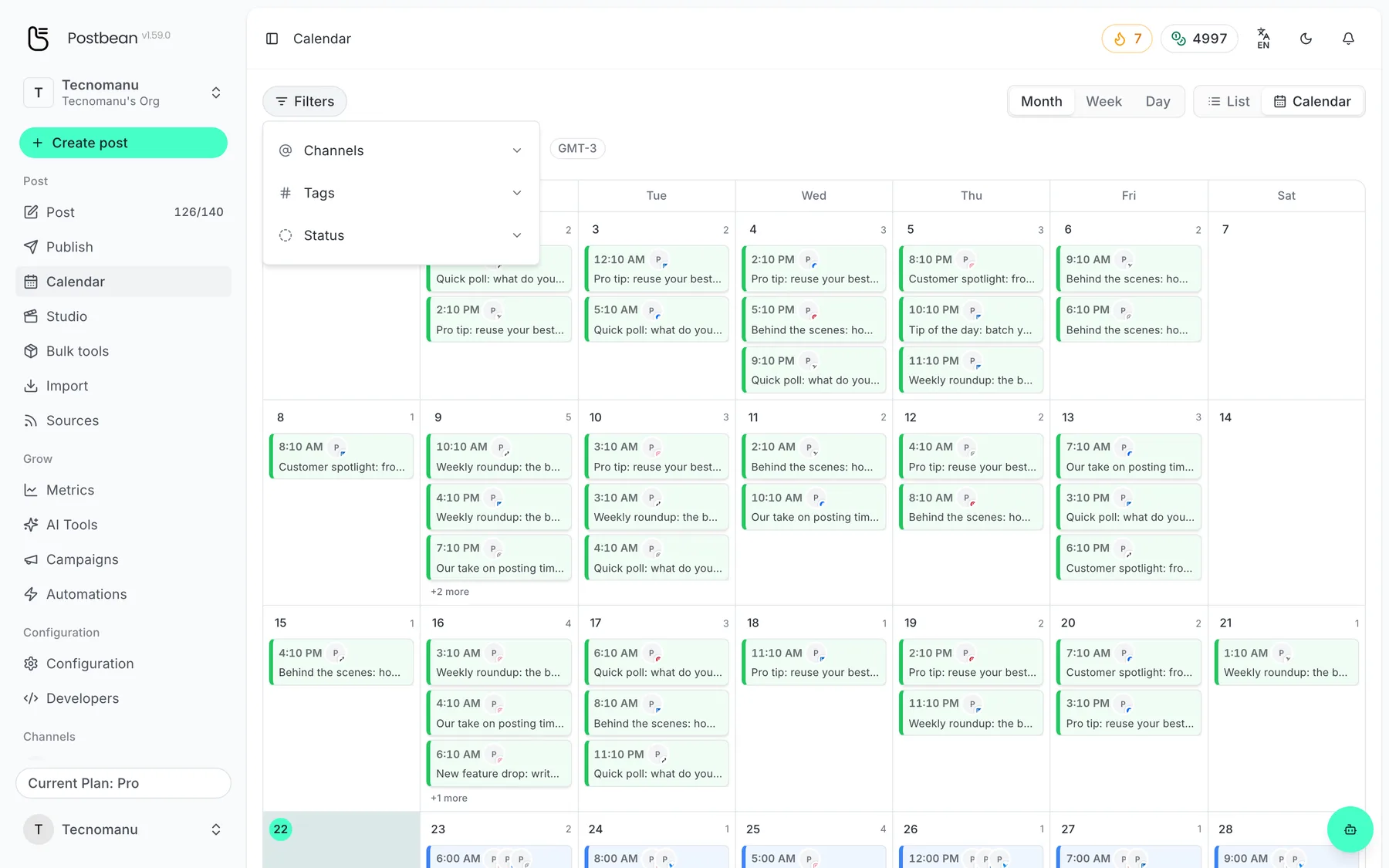
Filter by channel, tag or status.
Review tagged posts in Publish
The Publish views also offer tag and channel filters. Choose the relevant tab and narrow its results using the existing tags. A tag selection does not change a post’s publication state, assign a date, or send it to a new account.
When a filtered list looks unexpectedly short, check the tab as well as the filters. Drafts and sent posts have different jobs in your review. Removing a tag filter broadens the result within the current view; it does not move posts between those states.
Check what a missing result means
Say you expect to find a workshop announcement in next week’s calendar. Start with the right workspace and week. Remove the tag filter, then look for the announcement by its caption. If it appears without the filter, it may not have the tag you expected. If it doesn’t appear at all, switch to List to check whether the draft still has no date. Then open the post itself to confirm its destination and status.
If you’re using the filter to prepare a handoff, tell the next person which workspace, date range, and accounts you checked. Treat the filtered view as a working list, not a complete inventory. An untagged post can be part of the same campaign and still be absent from that view.
Keep labels and publishing actions separate
Tags belong to the workspace and can carry a name and a color. They help identify existing groups of posts; they do not create an approval process, trigger publication, or establish an analytics report for a campaign. Review the actual post and destination before taking a publishing action.
If you need to prepare new content, use the composer. If you need a formal sign-off process or a full tag manager, do not assume those are included in the filter. Create an account to use Postbean’s available publishing tools, with this distinction in mind.
Related reading
Frequently asked questions
Where can I filter by tag?
The Calendar and Publish views include tag filters for the active workspace.
Can I create or assign tags in the composer?
A create-and-assign workflow is not currently available in the composer. The implemented feature is filtering posts with existing tags.
What happens when I select several tags?
The results include posts with any of the selected tags, subject to the other filters and the current view.
Are tags shared between workspaces?
No. The available tag list belongs to the active workspace.