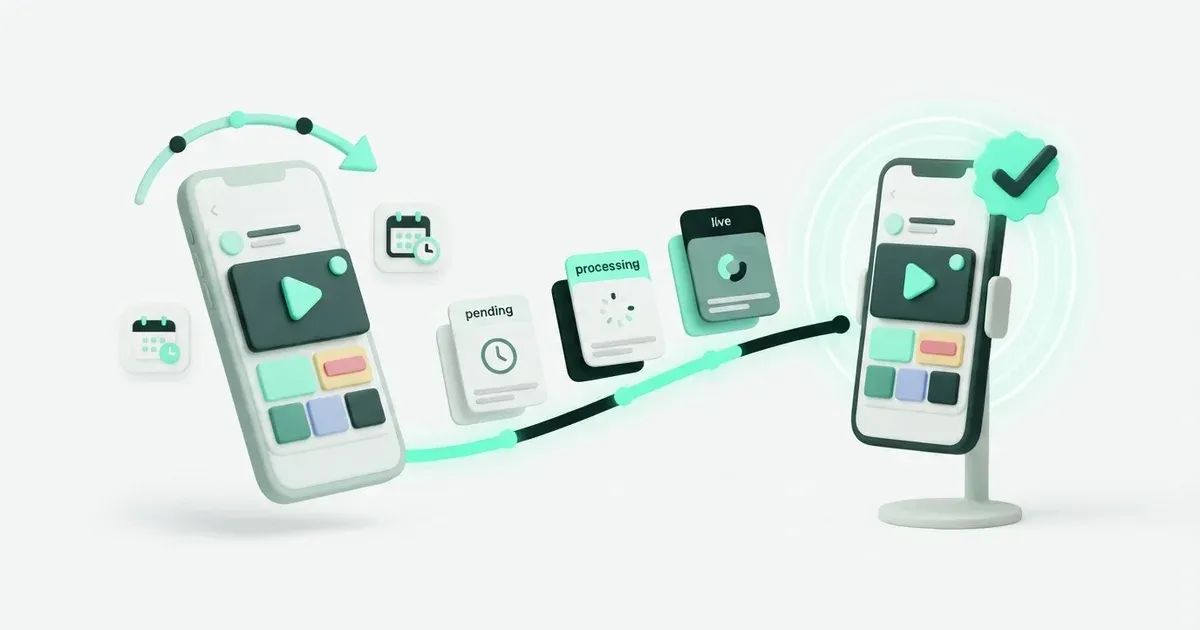
A scheduled TikTok transfer and a public TikTok video are not always the same thing. Before preparing a batch, check whether the integration will publish directly or send the file to your TikTok inbox for you to finish. That distinction decides whether someone must be available at launch time.
TikTok offers a native web scheduler. Postbean can place the clip beside your other network versions, with its own caption and time. Use a finished video, confirm the account and review the audience before relying on either route.
Prepare the video you intend to send
Export the actual final cut rather than a review copy. Check the opening frame, audio, end card and any subtitles. If the video says “tomorrow,” make sure that still means the correct day when the scheduled post appears.
For Postbean, use an MP4 or QuickTime video no larger than 100 MiB. TikTok receives video through this integration; native photo posts are not implemented in Postbean. You can export a sequence of photos as a video if that format suits the idea, but it will not become a native photo carousel.
Postbean does not add a sound from TikTok’s library to the upload. If the creative depends on choosing a native sound or finishing an app-specific effect, plan the native step rather than assuming the finished file will gain that treatment automatically.
Schedule with TikTok’s web tool
- Sign in on TikTok’s website and open the upload page.
- Upload the video, complete the caption and review cover and audience settings.
- Enable Schedule, select a date and confirm.
- Find the item beside drafts in the profile and verify it.
TikTok’s Video Scheduler guide gives a window from fifteen minutes to ten days, using the computer timezone. It describes Business-account access for desktop scheduling. It also says scheduled video, caption and time cannot be edited: remove the scheduled item and upload again when changes are necessary.
Connect TikTok in Postbean
Open Connections in the workspace where the post belongs, select TikTok and complete authorization. Confirm the returned username. If your browser opened another account, correct the connection before scheduling anything.
Next, inspect the note beside TikTok on the post. Postbean has Direct Post and inbox-upload modes. The mode depends on integration configuration and available permissions; it is not a promise that every connected account will immediately publish publicly.
Direct Post submits the video for publication with its settings. Inbox upload transfers the video so you can complete the post inside TikTok. In inbox mode, keep the caption, audience and disclosure notes handy for that final step: the prepared settings are not sent as publication settings with the file.
Schedule through Postbean
1. Attach one finished clip
Open Create post, select TikTok and upload the video. Play the beginning, a middle section and the ending. A file that opens successfully is not necessarily the final version; compare the spoken offer or instructions with the caption before continuing.
If a different cut should go to YouTube, create a separate post for that file. A shared caption override does not replace the shared video with a different edit. Use one shared post when the same file really suits the selected destinations.
2. Write the TikTok caption
Postbean checks a 2,200-character limit for TikTok, measured in UTF-16 units. Spaces, links, line breaks and hashtags count. In a shared draft, write a TikTok override if the default text is too long or assumes context from another network.
The caption can add a useful detail instead of transcribing the entire video again. For a demonstration, name the tool or condition viewers need to reproduce it. Keep claims and prices consistent with what the clip shows.
3. Choose the Direct Post audience explicitly
For Direct Post, open TikTok’s settings and choose an available audience. Postbean requires an explicit choice before scheduling. TikTok supplies the choices for the connected creator, so a setting available to one profile is not necessarily available to another.
Review comments, Duet and Stitch where the account allows them. Postbean cannot override a restriction TikTok returns for that creator. The same creator information supplies the maximum video duration, so do not treat a limit seen on another account as universal.
4. Check commercial and AI disclosures
Distinguish promotion of your own brand from a paid partnership for another brand. If you open the commercial disclosure setting, select the applicable brand option rather than leaving the disclosure incomplete. Paid partnership content cannot use the Only you audience in this workflow.
Also review the option for AI-generated or substantially AI-edited content. These settings describe the clip being sent, not the account in general. A private review draft and a public sponsored release may need different choices even when they use the same source footage.
5. Save and choose the time
Save a draft and check its warnings. Choose the date using the workspace timezone, then reopen the post to verify the stored schedule. Use per-network scheduling when the same file should reach TikTok at another time than Instagram or YouTube.
For inbox upload, schedule the transfer early enough for someone to finish in TikTok. A transfer set for the exact public deadline leaves no time for manual completion. For Direct Post, allow for TikTok’s processing rather than promising the video will be visible at the exact second of submission.
Common errors and what to check
Audience or disclosure is missing
Open the TikTok tab and complete the required selection. Do not repeatedly save the same incomplete settings. If you are using an agent or API, it must supply the same required choices; those interfaces do not bypass the publishing checks.
The clip is too long
Read the current limit returned for the connected creator and prepare a shorter edit if needed. The creator-info documentation explains why duration is account-specific. Postbean’s 100 MiB upload ceiling is a separate restriction; a small file can still be too long.
The transfer succeeded but nothing is public
Check whether the route was inbox upload. Open TikTok and complete the post. For Direct Post, verify processing and audience. TikTok’s Direct Post requirements also describe visibility restrictions for unaudited clients, so authorization alone is not proof of public distribution.
No first comment appeared
Postbean does not schedule a TikTok first comment. Put necessary information in the video or caption. If you need a manual follow-up, assign it separately and check the public post before commenting.
A retry could duplicate the video
Read the account result and check TikTok before creating a replacement. An upload identifier is not always a public permalink. Keep successful destinations intact when only TikTok needs recovery, and retry the failed destination rather than resending the whole campaign.
Verify the first scheduled clip
Open TikTok after the send and confirm the intended audience can see the video. Inspect caption, audio, subtitles and any required final step. Postbean does not currently sync real TikTok performance metrics, so use TikTok for views and engagement. The TikTok channel guide is the reference for the next batch.
Example: a demonstration with a public deadline
For an invented product release, note three separate tasks: prepare the final clip, confirm the publishing mode and verify public visibility. If someone must finish an inbox upload, give them the caption and disclosure decisions before the transfer. Ask them to confirm completion with the actual live post, not merely a notification that a file arrived. That makes the remaining work visible before the deadline instead of discovering it after the announcement should have appeared.
Sources
- TikTok: native Video Scheduler — checked November 22, 2026
- TikTok: creator-specific publishing limits — checked November 22, 2026
- TikTok: Direct Post requirements — checked November 22, 2026