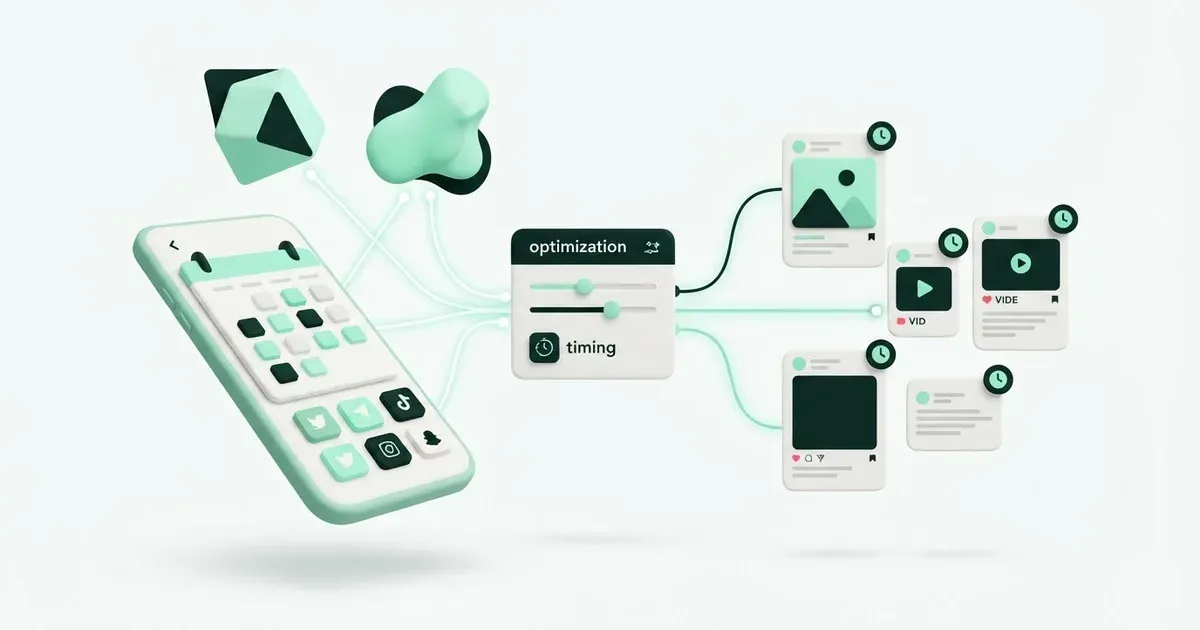
You can ask an assistant to write a caption without connecting anything. Scheduling that caption in the right account requires access to a publishing tool. Postbean exposes that access through MCP, using a workspace API key.
The practical sequence is to connect, read the accounts, create a draft, review it, and then set its publication time. Keep those as separate actions during your first run. A good caption does not prove that the assistant selected the right business or understood what you meant by Tuesday morning.
This guide gives you a concrete Claude Code setup. ChatGPT needs a separate compatibility check, covered below. Supporting MCP does not by itself establish that two products accept the same authentication method.
Start with a workspace and a limited key
Connect your social accounts in Postbean first. The MCP tools operate on connected accounts; they do not replace the account connection screens. Open Settings → Developers, check the access requirements shown for your account, and create a key for the workspace you want the assistant to use.
For a draft test, select accounts:read, posts:read, and drafts:write. Immediate publication uses the separate posts:publish permission. Deletion has its own posts:delete permission. Add AI-generation permissions only if you intend to call Postbean’s generation tools, rather than have your assistant write the text itself.
Treat scheduling as permission to send content later. A key with draft-writing access is not an approval system, and the absence of the immediate-publish scope should not become your only editorial safeguard. Keep your first test explicitly in draft state.
The token appears once. Store it in your client’s secret configuration or environment, outside shared documents. Never paste it into a prompt example that your team will reuse.
Connect Claude Code over HTTP
With POSTBEAN_API_KEY already set in your shell, register the hosted server:
claude mcp add --transport http postbean https://postbean.app/mcp/postbean --header "Authorization: Bearer $POSTBEAN_API_KEY"This follows Claude Code’s documented HTTP-server configuration and Postbean’s installation helper. The hosted endpoint is https://postbean.app/mcp/postbean. It is an MCP endpoint, not the URL for a REST post-creation request.
Ask the assistant to list its Postbean tools, then list connected accounts. On the hosted server the account tool is list_accounts. You should recognize the platform and username before moving on. If you expected a client’s LinkedIn account and see your own, stop and check the key’s workspace.
If the server was registered but tools do not appear, check the client’s server status and reload its connection. An authentication failure calls for checking the key. A missing scope calls for issuing a suitable key; repeating the same request will not grant it new permissions.
Choose the local package when files live on your computer
Postbean also provides the npm package @postbean/mcp. It runs over stdio and requires Node 18 or newer. Register it this way:
claude mcp add postbean --env POSTBEAN_API_TOKEN=$POSTBEAN_API_KEY --env POSTBEAN_BASE_URL=https://postbean.app -- npx -y @postbean/mcpChoose one connection for your initial test. Registering both under different names can make it harder to see which tool the assistant selected.
Tool names differ between the current transports. The local package lists accounts with list_connections and creates posts with create_post. For a local-package draft, explicitly pass draft: true. Its create_post can publish immediately when the draft flag and schedule are omitted. The hosted create_post_draft always creates a draft.
The local package can read a local path in upload_media. The hosted process cannot read your laptop’s filesystem. Use a reachable URL or the REST upload procedure when the file is only local and your connection is hosted.
What about ChatGPT?
OpenAI documents custom MCP connections, with authentication choices including OAuth and no authentication. Postbean’s verified hosted setup uses an authorization bearer header. The repository does not establish a ready-to-use ChatGPT connector or a matching OAuth setup.
Check your ChatGPT account’s supported connection and authentication options before promising this workflow to a team. A bearer-header example for Claude is not a ChatGPT installation recipe. If those options do not match, use the verified Claude setup or design and review an appropriate adapter separately. Do not remove authentication from Postbean to make a connection succeed.
Make the first request deliberately small
Use a prompt that names both the account and the stopping point:
Find the connected LinkedIn account for our studio. Draft a text post about our new appointment hours using only the facts below. Save it as a draft. Do not schedule or publish. Return the post ID and the saved caption.
Supply the hours, start date, and booking link yourself. The assistant should not infer those details from the company name. Have it read the resulting post with get_post, rather than repeat the text it intended to save.
Keep the returned public post ID. Later edits should use update_post on that same ID. Creating a fresh draft for every correction leaves several plausible versions in your workspace and makes the final scheduling instruction ambiguous.
Review each destination before setting a time
Check the actual target accounts, caption, media, and platform-specific choices. A single shared caption may need a shorter version for another network. Hosted MCP edits use fields such as overrides.threads.caption; the REST API calls the corresponding object platform_overrides.
Postbean returns publish_issues for text-limit problems. Drafts may contain text that is too long, while scheduling or publishing checks it. Fix the affected network’s version rather than shortening every destination to the smallest limit.
For TikTok, call get_tiktok_creator_info and use the account’s returned audience options. Do not ask the assistant to invent a privacy value. Review commercial disclosure and other required choices before authorizing publication.
Confirm the clock in words
On hosted MCP, get_workspace returns the workspace time zone and local time. Ask the assistant to read them before scheduling. A date without an offset is interpreted in that workspace’s zone; a date with Z denotes a UTC instant.
For example, 2026-12-01 17:00 means five in the afternoon in the configured workspace. 2026-12-01T17:00:00Z means a specific UTC instant. They are not interchangeable strings.
After review, say:
Schedule this existing post for December 1, 2026, at 17:00 in the workspace time zone. Read it back afterward and report the saved time with its offset and all target accounts.
Use an explicit date rather than “next Tuesday” when several people are reviewing the conversation. Scheduling authorizes a future send; it is not a reminder to ask for approval later.
For a batch, ask for a review table before any scheduling action. Include the post ID, account username, proposed date, and time zone in each row. Confirm corrections on that table, then have the assistant apply the approved changes to those exact IDs. This makes it easier to catch a swapped account or date without rereading a long chat.
Verify the saved result and the eventual send
If media was uploaded from a URL, the download may still be pending after the tool returns. On hosted MCP, inspect it with get_media until it is ready or reports a failure. Do not upload it again just because processing took longer than the conversation step.
A scheduled post is also different from a successfully published post. Read the result after its scheduled time and inspect individual account outcomes. A partial result needs attention to the affected destination, not an automatic repost to every account.
Keep your first test modest: one approved text, one account, one known future time. Once the saved data and published outcome agree, use the same sequence for larger batches. The Postbean MCP guide covers the connection details; the MCP explainer explains the boundary between an assistant and the publishing service.
Sources
- Postbean MCP guide — checked November 22, 2026
- Claude Code MCP documentation — checked November 22, 2026
- OpenAI custom MCP server documentation — checked November 22, 2026